


I used to convert a document to a presentation in just one way. I retold it. Section followed section, and the conclusion sat at the end. For a meeting where the team makes a decision, a retelling is enough. But what if you need your colleagues to actually open the document? Then the presentation names the conclusion and gives two or three hooks. Each hook leads to its own section. Below I’ll tell you how I got here and how I build a deck like this from a file.
My team saw my UX report at a meeting and forgot it a month later
A couple of years ago I ran a UX study. I talked to six people who had dropped our product in their first week. Those conversations turned into a 12-page report. I attached a table to it: who said what, where they got stuck, what surprised them.
I put together a presentation and showed it to the team. The presentation repeated the report: goals, method, participants, findings step by step, conclusions. My colleagues nodded. They asked a couple of questions, and I dropped the report link into the team chat.
A month later we were discussing a new onboarding screen at a design review. That screen had the very same mistake. Three of the six participants had told me about it, and in similar words. The research was there. The presentation was there too. But not a single phrase from the interviews had stuck in the team’s heads.
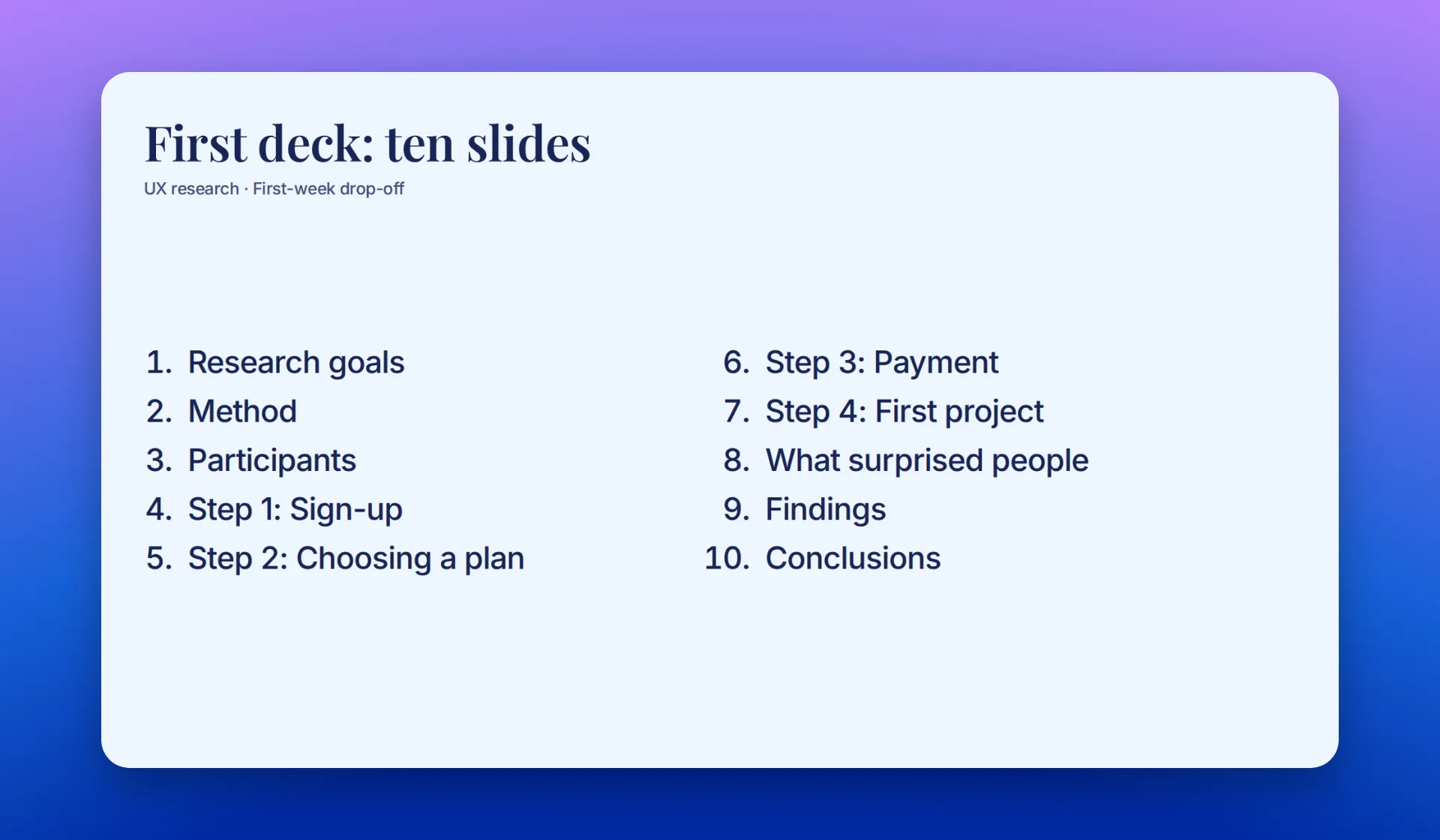
Every title in the first deck named a topic, not a thought.
A retelling deck makes the document unnecessary
At first I decided I had made bad slides. But the slides weren’t the problem. My deck answered the question “what did we learn?” It answered it completely, and the document became unnecessary. Who opens 12 pages when the speaker has already told them everything?
But research isn’t valuable for its conclusions. The team forgets the conclusion “people don’t understand step two” within a week. A phrase like “I thought I’d already paid, so I closed it” is different: colleagues still bring it up six months later. Phrases like this bring a team closer to the people it builds the product for. And they live in the document, not on the conclusions slide.
A presentation based on a document can have two different jobs:
| Job | What people do after the meeting | What the deck looks like |
|---|---|---|
| Share the conclusions | Make a decision and don’t open the document | Complete: conclusion, evidence, decision |
| Bring the team into the document | Open the document and read their sections | Short: conclusion, a few hooks, a map of the document |
My research needed the second job, and I was doing the first. The first job has its own article: how to turn a long report into an executive presentation. This one is about the second.
One rule works for both. Even if the deck invites people into the document, don’t hide the conclusion. It’s a work meeting, not a TV series. So the hooks lead to details and people’s voices, not to the answer.
A 7-slide deck brought the team into the next report
A quarter later I ran a new study in the same format. Again six interviews, a report and a table. But this time the deck wasn’t a replacement for the document. It was a way into it. The deck fit into seven slides:
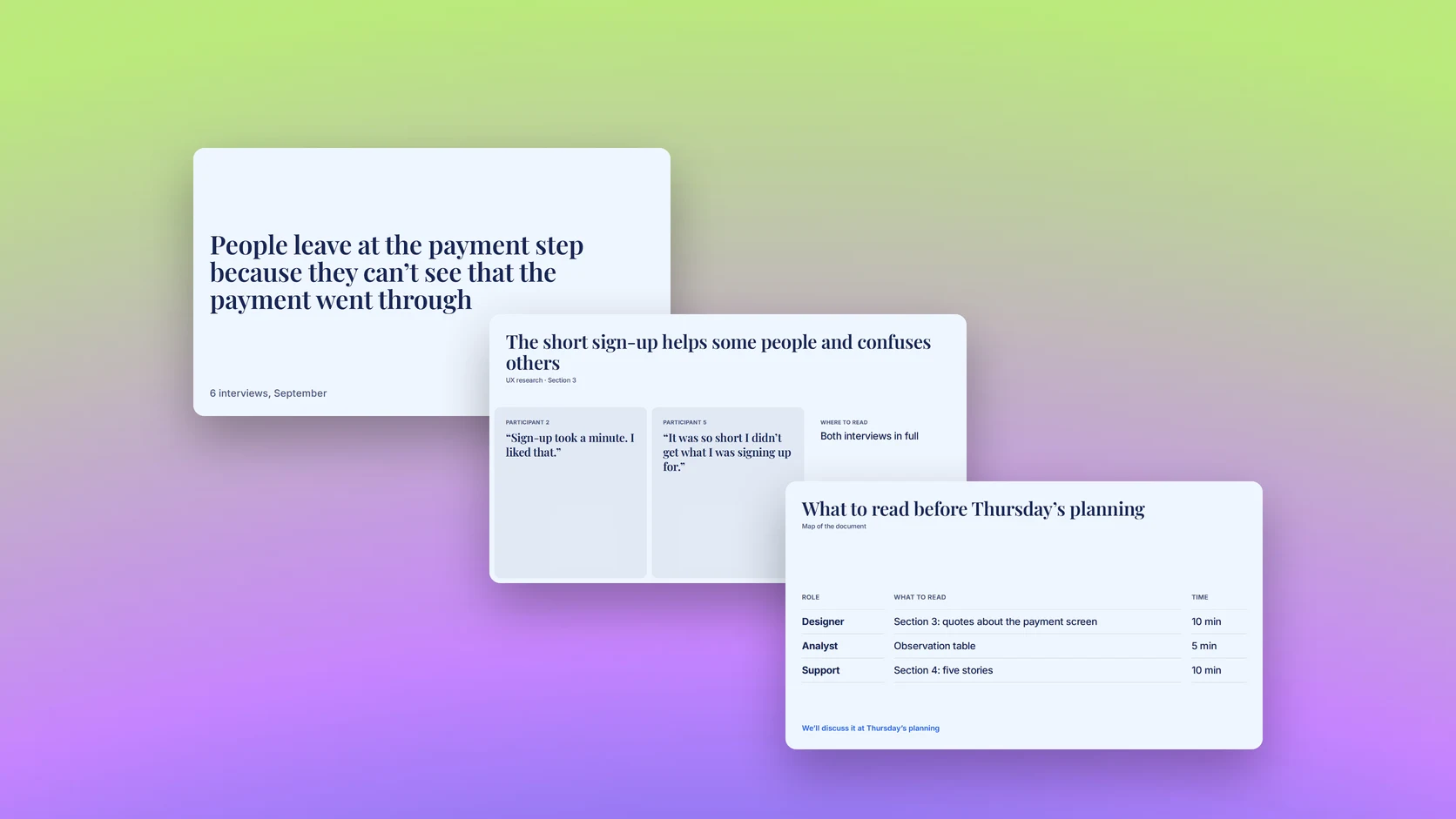
- The first slide states the conclusion. “People leave at the payment step because they can’t see that the payment went through.” Under it sits one line on method: “6 interviews, September.”
- Two quotes argue with each other. One person praises the short sign-up. Another says that because of it, they didn’t understand what they were signing up for. Caption: “both interviews in full — section 3.”
- One number points to the table. “4 of 6 tried to pay twice.” Caption: “who and at which step — observation table.”
- One participant walks through the product. I showed her path in three steps. At the third step she said one phrase and closed the tab. Caption: “five more stories — section 4.”
- An open question invites the team to comment. “Why did two of the six come back a week later?” Caption: “got ideas? Leave a comment on section 5.”
- Two next steps and their owners. The slide names the steps and who is responsible for each.
- The map tells everyone which section to read. Designer — section 3, quotes about the payment screen. Analyst — the table. Support — section 4. Each item shows the reading time: 5–10 minutes. At the bottom, a deadline: “we’ll discuss it at Thursday’s planning.”
After the meeting, five out of seven people opened the document. They left a few comments in it. Two weeks later, at a review, a designer said the phrase I’d done all this for: “Remember what that woman in the interview said?” That’s how the research started spreading through the team.
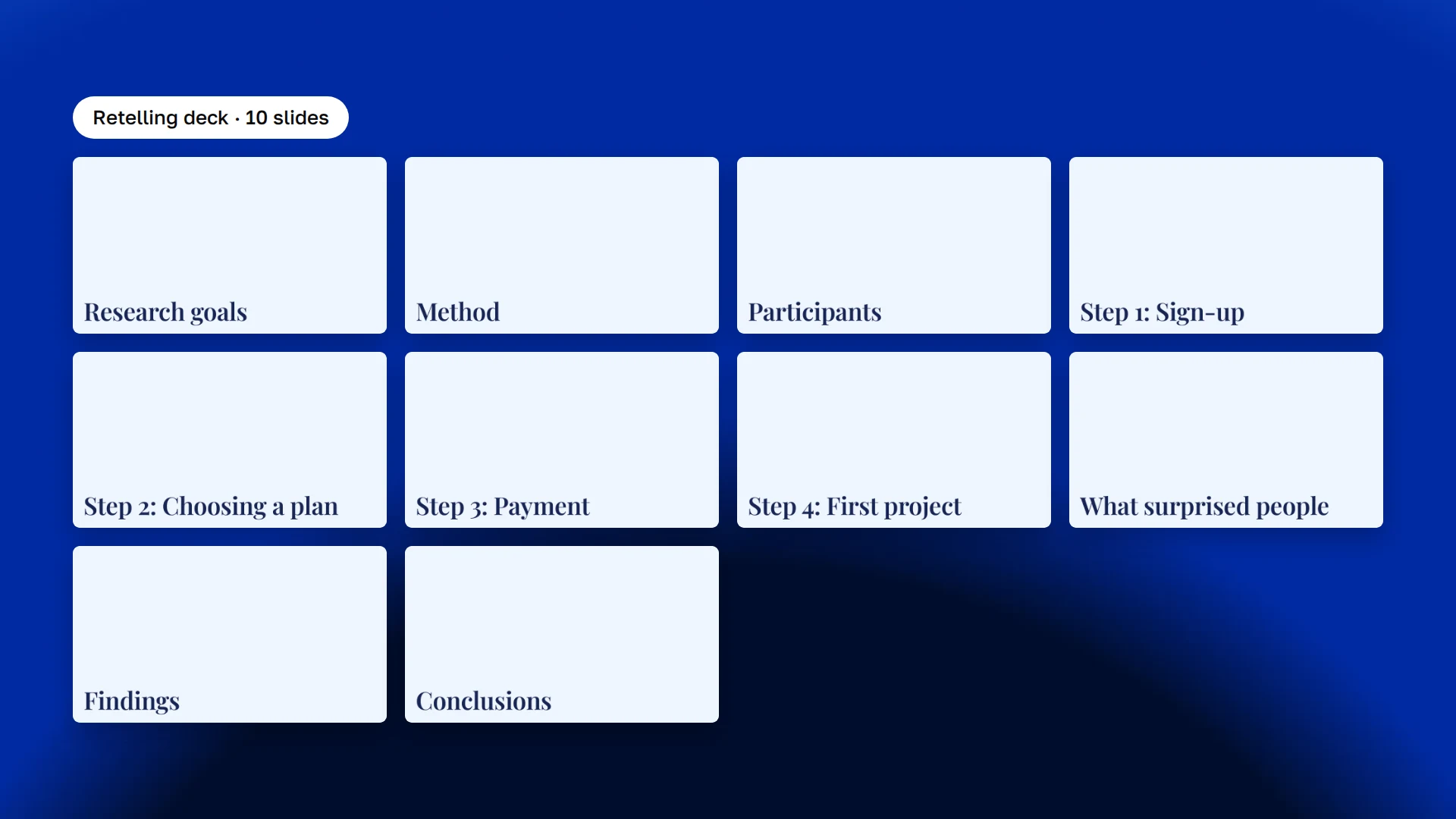
The first deck: ten topics, one per slide.
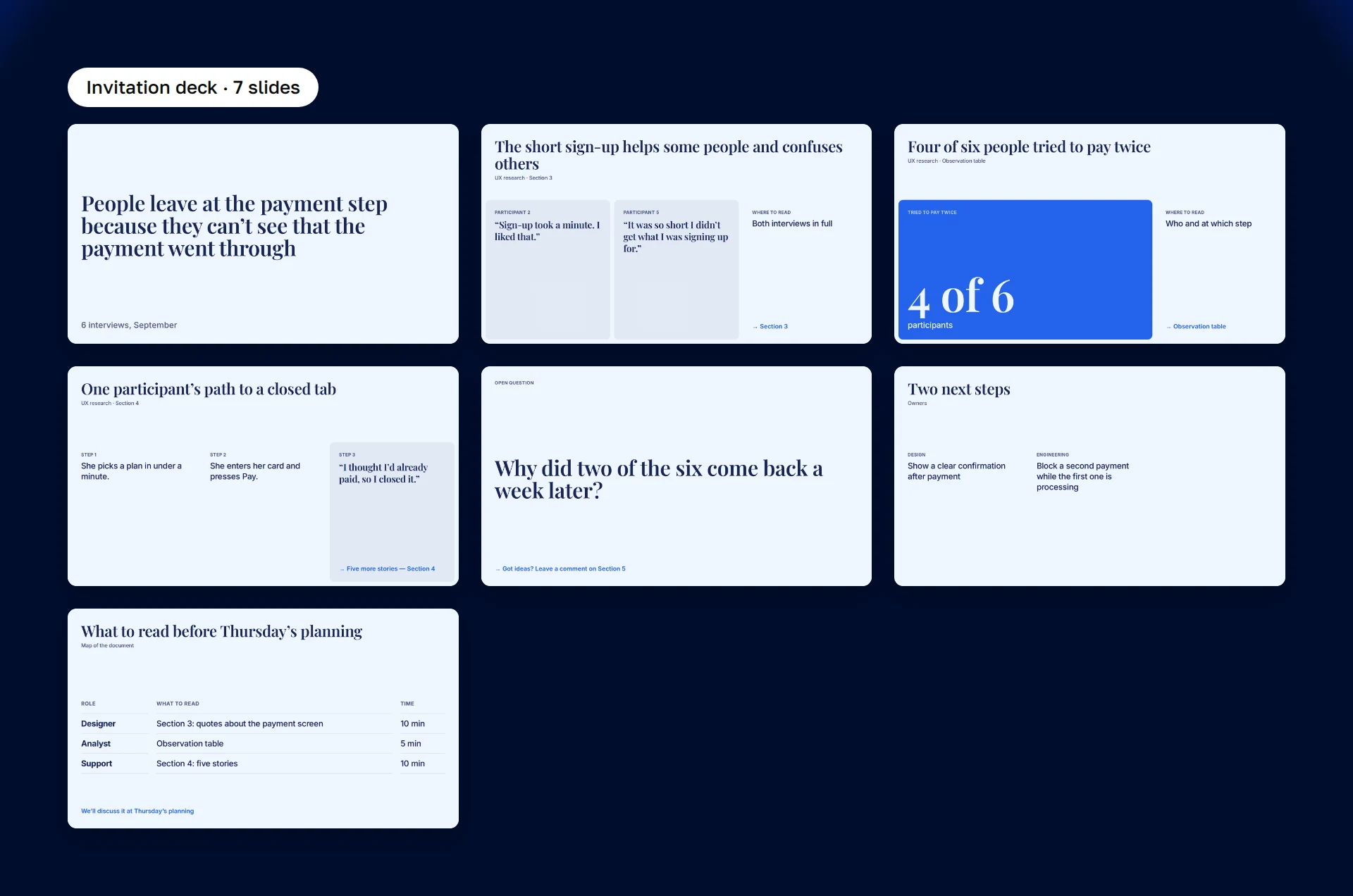
The second deck: seven slides, and most of them point to a section of the document.
5 techniques to get colleagues to open the document after your presentation
The seven slides above aren’t a template. Behind them are five techniques. You can use them for any document: a study, a spec, or a report on why a service went down.
1. Every hook has an address in the document
A caption like “more in the document” doesn’t work. “Section 3, interview with Anna” does. With an address, people don’t search. They go straight to the right place. For that, you need numbered sections. No numbers? Add them before the meeting; it takes five minutes.
2. The caption says why to follow the address
The address says where. The reason says why. Compare two captions: “quotes — section 3” and “in section 3, people criticize what we thought was our strength.” People follow the second one into the document.
3. Two quotes that disagree pull people in harder than one
One quote that confirms the conclusion closes the question. Two quotes that disagree open it. And people go into the document to find out who’s right. Two numbers that don’t add up work the same way.
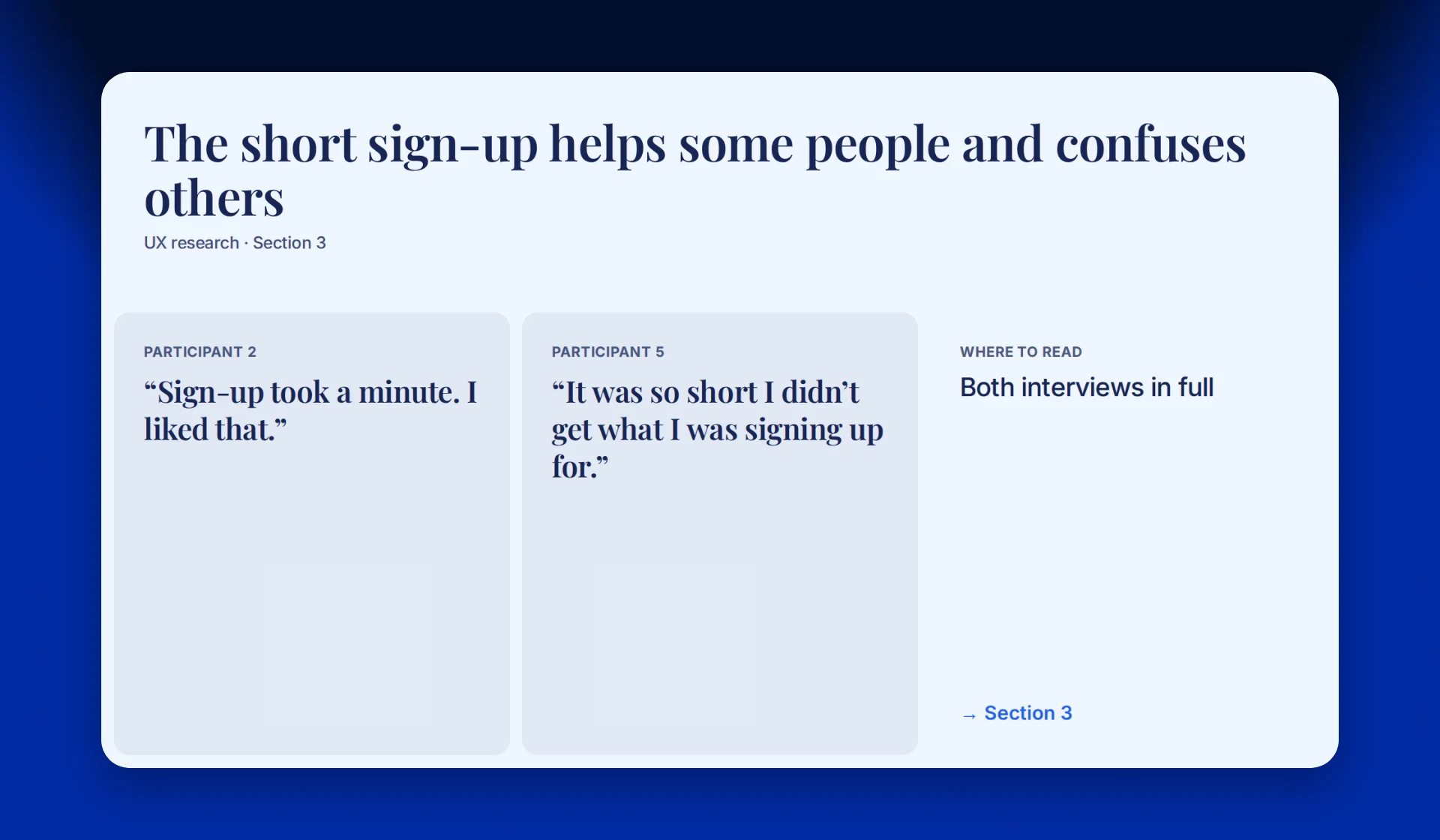
Two quotes that disagree, and the address of both interviews.
4. The last slide gives each role its own section
The last slide answers everyone’s question: “what of this should I read?” Nobody will open twelve pages. But a designer will read two pages about their own work over lunch.
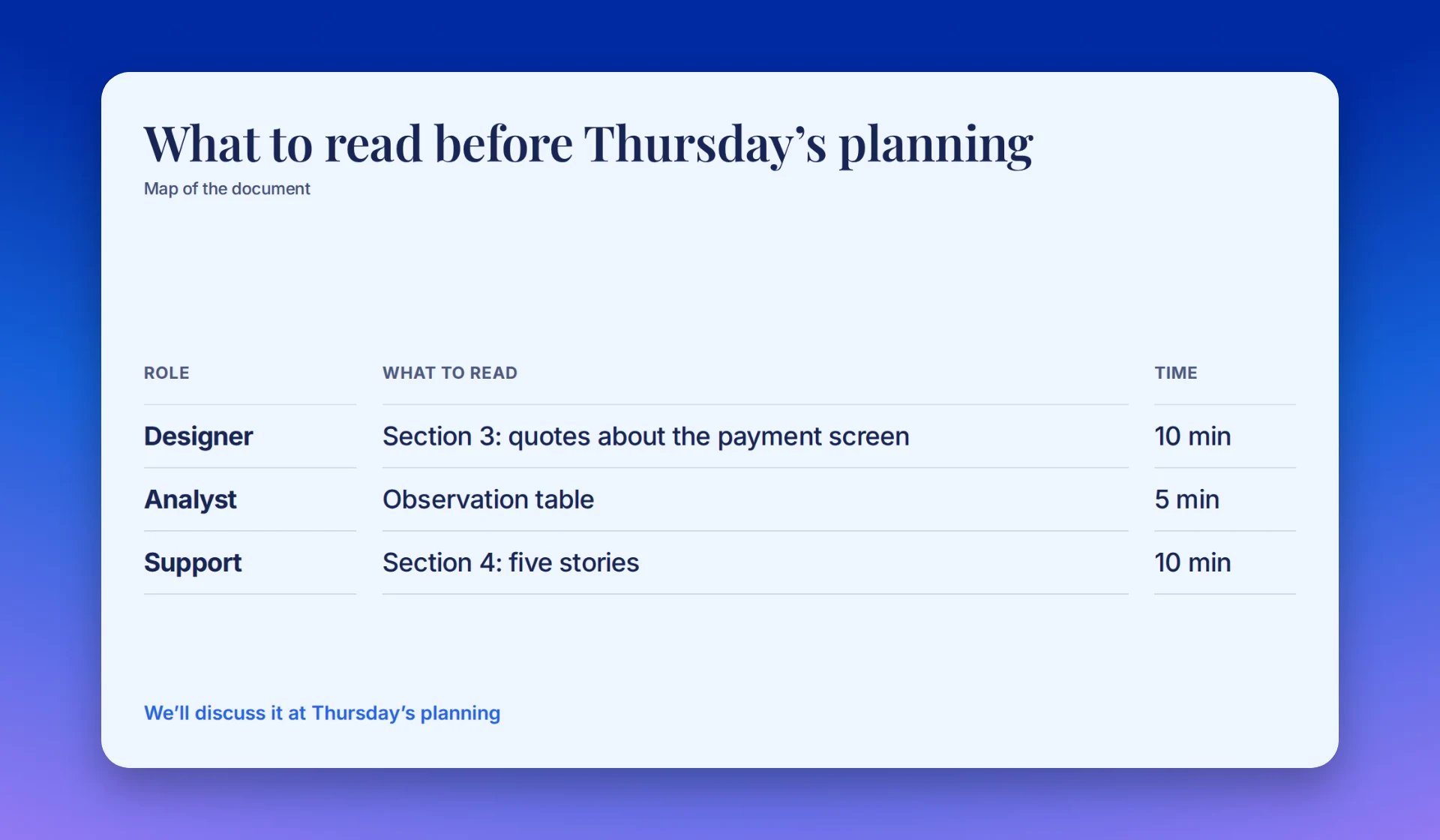
The map of the document: a role, a section and the reading time.
5. A deadline keeps the reading from being put off
Without a deadline, the document goes into the “later” folder. So ask people to read it by the next meeting: planning, a review, or a sprint kickoff.
Pick the sections in your document, and the guide will show what to put on the slides
Pick the goal of your deck and the sections your document has. The guide builds a plan of the deck and the lines to add to your prompt. The guide comes with six roles: finance, legal, sales, engineering, design, support. You can add your own too.
Your deck plan
Slides that send people to their sections of the document.
Plainline builds an invitation deck from your .docx or PDF
I don’t copy paragraphs from a Word document into PowerPoint anymore. I upload the whole report to Plainline: a .docx, a PDF or a spreadsheet. Next to it, I write the goal in one sentence: “A deck for the team. After the meeting, I want designers to read section 3 and analysts to read the table.” Then I add lines from the guide.
Sometimes I forget about the audience. Then Plainline asks on its own: who will be at the meeting, and what should happen after it. It offers answer options, and I pick one. What else to write next to the file, I covered in the article on long reports. It also has a prompt builder.
An invitation deck rests on two things. Plainline handles both of them for me.
- Quotes and numbers come from your file. One mistake breaks a hook. Someone opens section 3 and can’t find the quote from the slide. That’s why Plainline checks every quote and number against the file. Anything that isn’t in the file, it flags.
- Every block shows its source. Each block on a slide has a source icon. I click it, and Plainline shows the part of the document with that phrase. That’s how I check the “section 3” address in a second.
Plainline builds the deck from simple blocks: quote, number, comparison, text. Each block sits in its own cell, and text never runs over the edge. I present the finished deck right from Plainline or export it to PowerPoint.
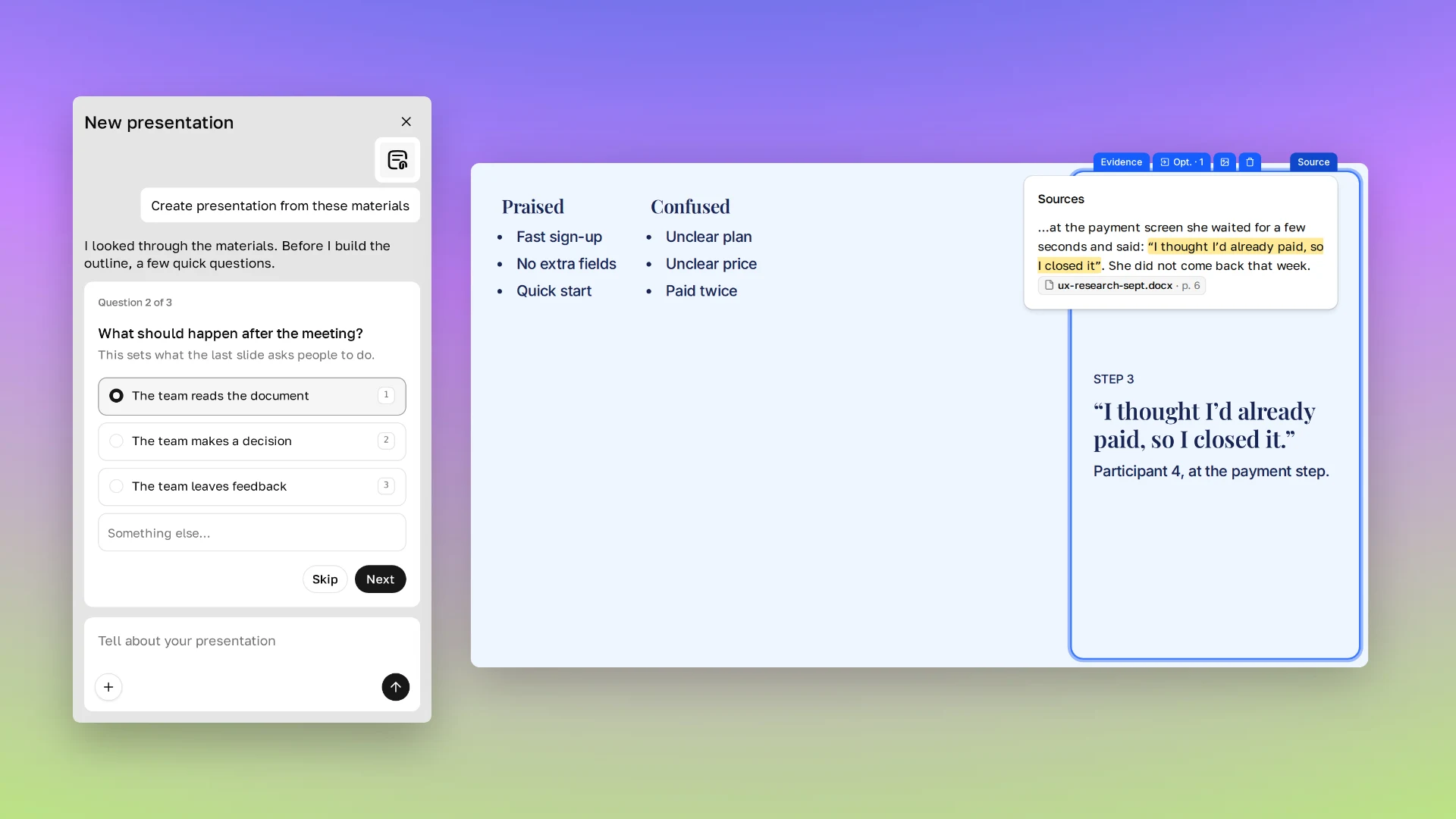
Plainline asks what should happen after the meeting and shows where each quote comes from.
Before the meeting, check the addresses; after it, send the map to the team chat
Before the meeting, I check three things:
- The first slide contains the conclusion.
- Every address leads to the quote the slide promises.
- Everyone at the meeting can open the document from the link: they all have access.
Right after the meeting, I post in the team chat. I put the document link and the map from the last slide there. An hour later, people still remember the quotes. A week later, they’ll have forgotten them.
Upload your document to Plainline and write who should read what after the meeting.
Frequently asked questions
How do I turn a document into a presentation quickly?
First decide what the deck is for: to share the conclusions, or to bring people into the main document. Then give the whole file to a document-to-presentation AI. Next to it, write that goal. If you copy paragraphs by hand, you’ll end up with a section-by-section retelling.
How do I convert a Word document to PowerPoint?
Upload the .docx to Plainline, build the deck and export it to PPTX. PowerPoint itself can also pull an outline from Word. But it carries the headings over as they are, and you get a retelling again.
How many slides should a 10–15 page report turn into?
For an invitation deck, 6–8 slides are enough for me. They hold the conclusion, two or three hooks, an open question, the decision and the map. Add more, and the deck starts replacing the document.
What if nobody needs to read the document?
Then you don’t need hooks. Make a complete deck with the conclusion and the decision. I covered that kind of deck in the article on long reports.
Does this work beyond research?
Yes. The techniques work for any document where the team needs the details. In a spec, the hooks are the rare scenarios developers forget about. In an incident report, the hook is the minute the service went down.