
Weekly and project updates as clear slides, in your team’s style

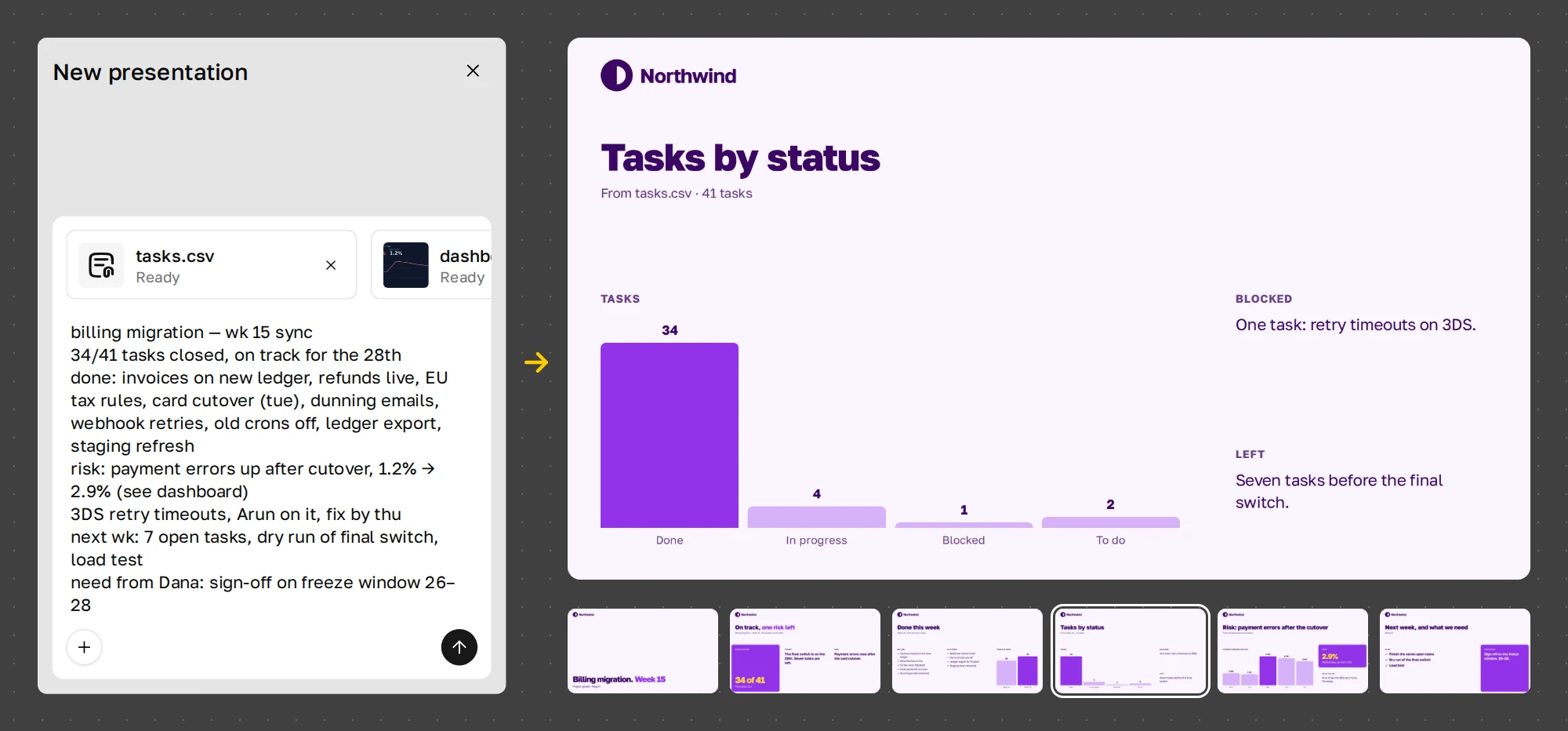
On the left, the Plainline chat with the week’s material: pasted sync notes, tasks.csv and a dashboard screenshot. On the right, the finished six-slide update with the tasks-by-status chart open

Every week

Your status already exists: in your notes, in a spreadsheet, in a screenshot. Bring it as it is and get a deck.

Notes

Paste your sync notes or the update you posted in chat. They don’t need to be tidy.
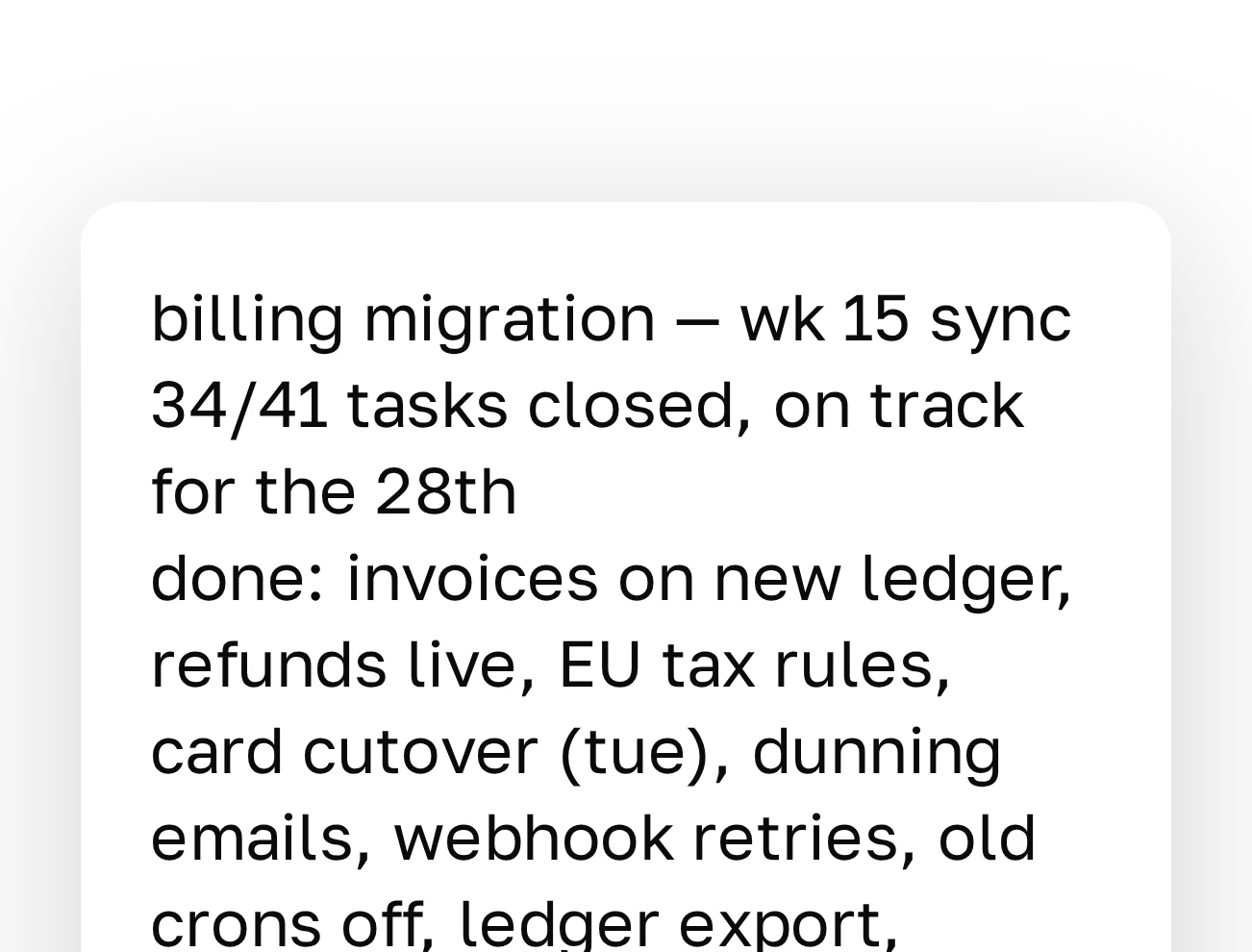
The chat input in Plainline with the week 15 notes pasted in

Spreadsheets

Add a tracker export or a metrics sheet, as CSV or Excel.
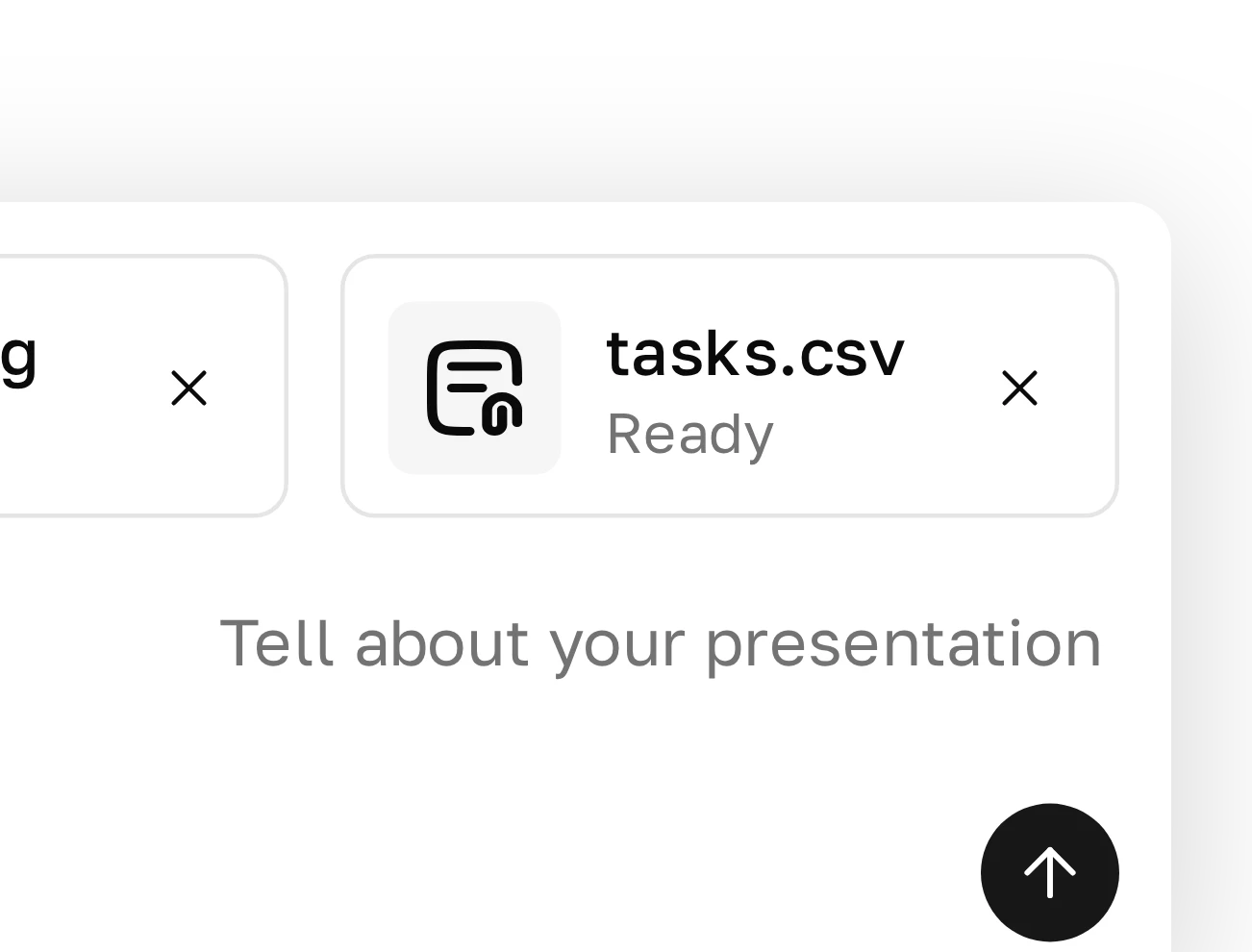
The uploaded file tasks.csv in the chat input with the status Ready

Files and screenshots

A PDF, a Word file, an old deck, or a dashboard screenshot. Plainline reads text from images too.
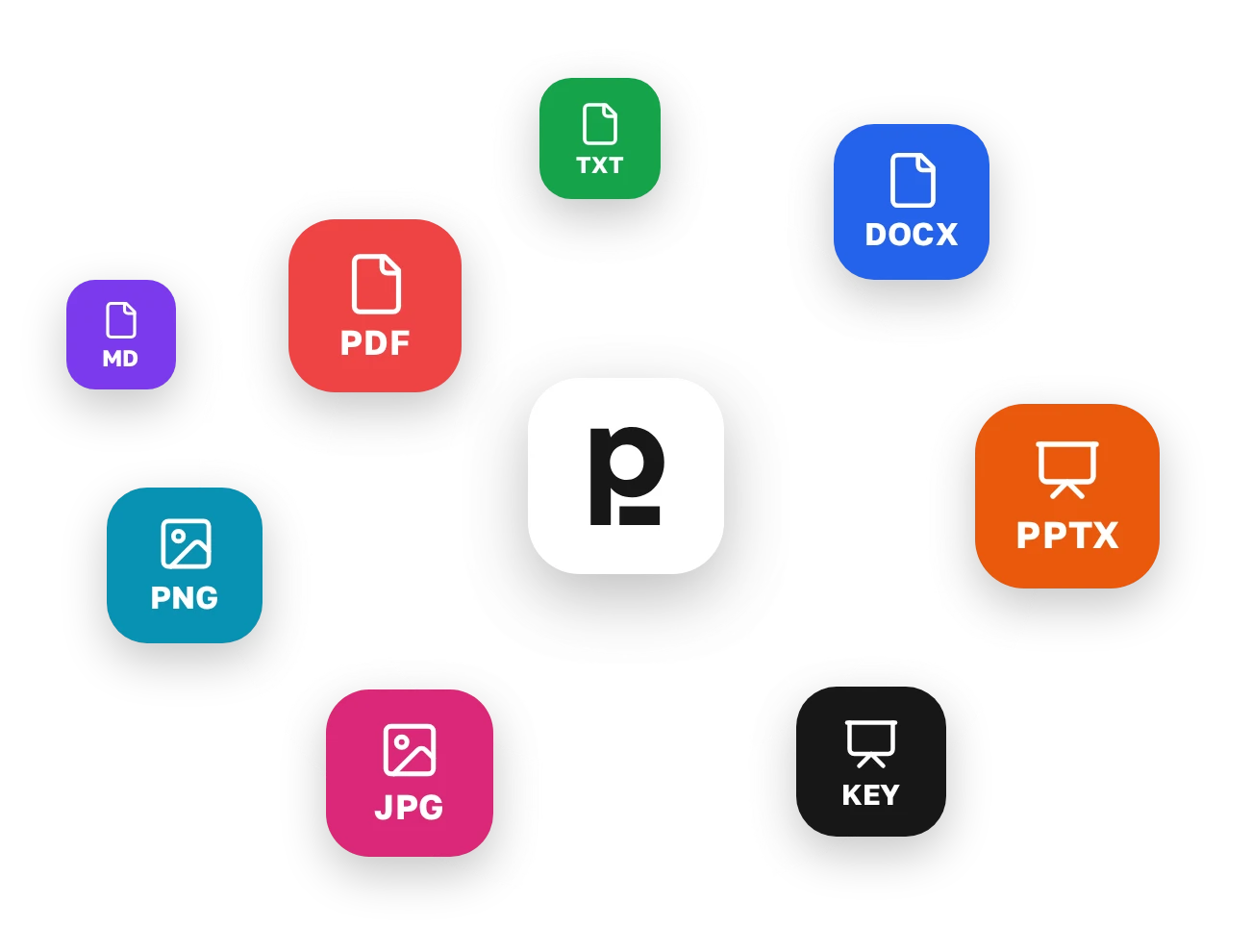
The Plainline logo surrounded by coloured tiles with file formats: PDF, DOCX, PPTX, KEY, PNG, JPG, TXT and MD

Sorting

Plainline works out what goes where.

The takeaway goes in the headline, the main number in its own block, a table turns into a chart. If unsure, Plainline asks a short question.
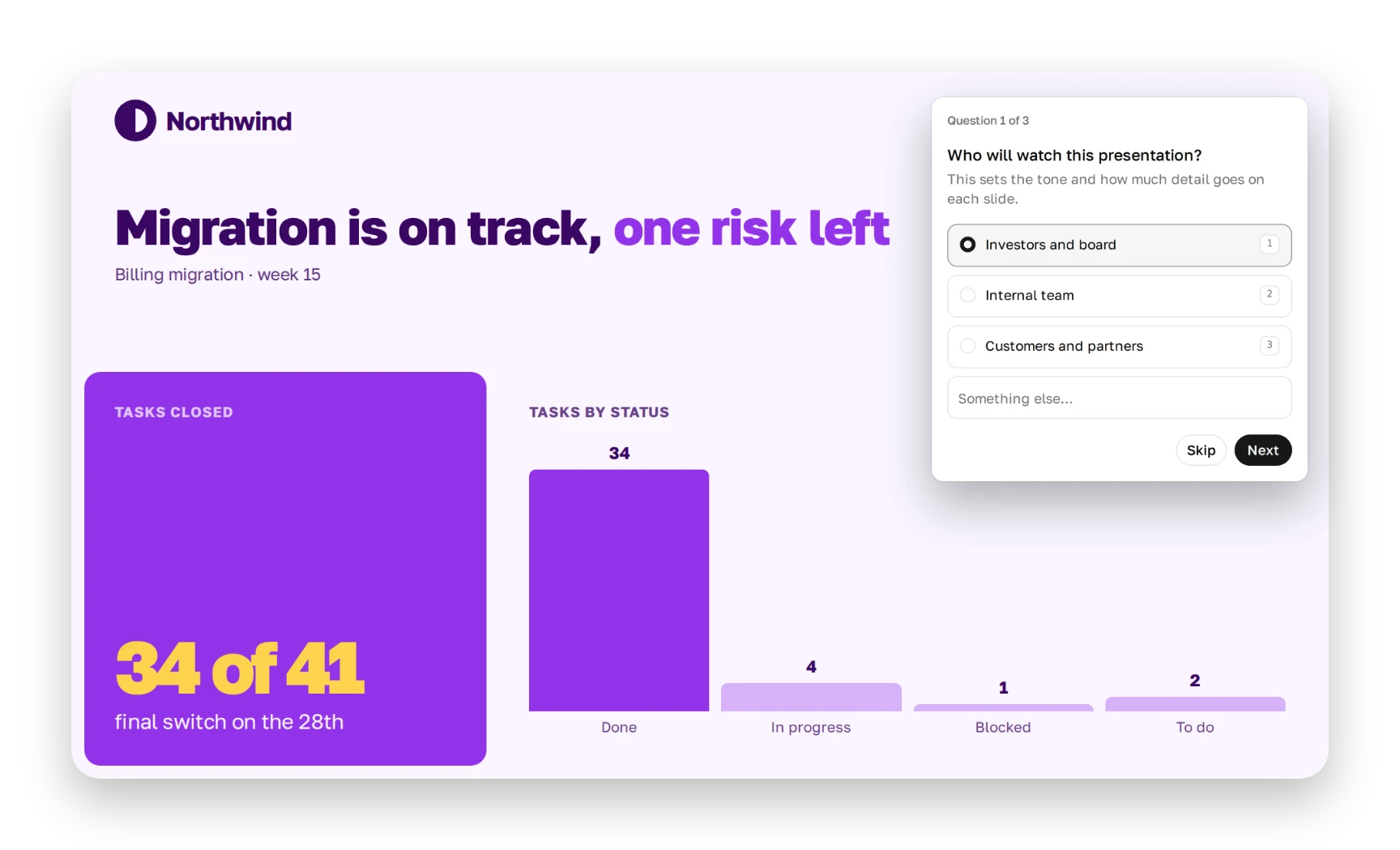
The slide “Migration is on track, one risk left” with a number block “34 of 41” and a bar chart of tasks by status. Next to it, Plainline’s question: who will watch this presentation?

Volume

A light week or a heavy one, the deck stays tidy.

Plainline fits the number of slides and the layout to this week’s material. No squeezing new text into old slides.
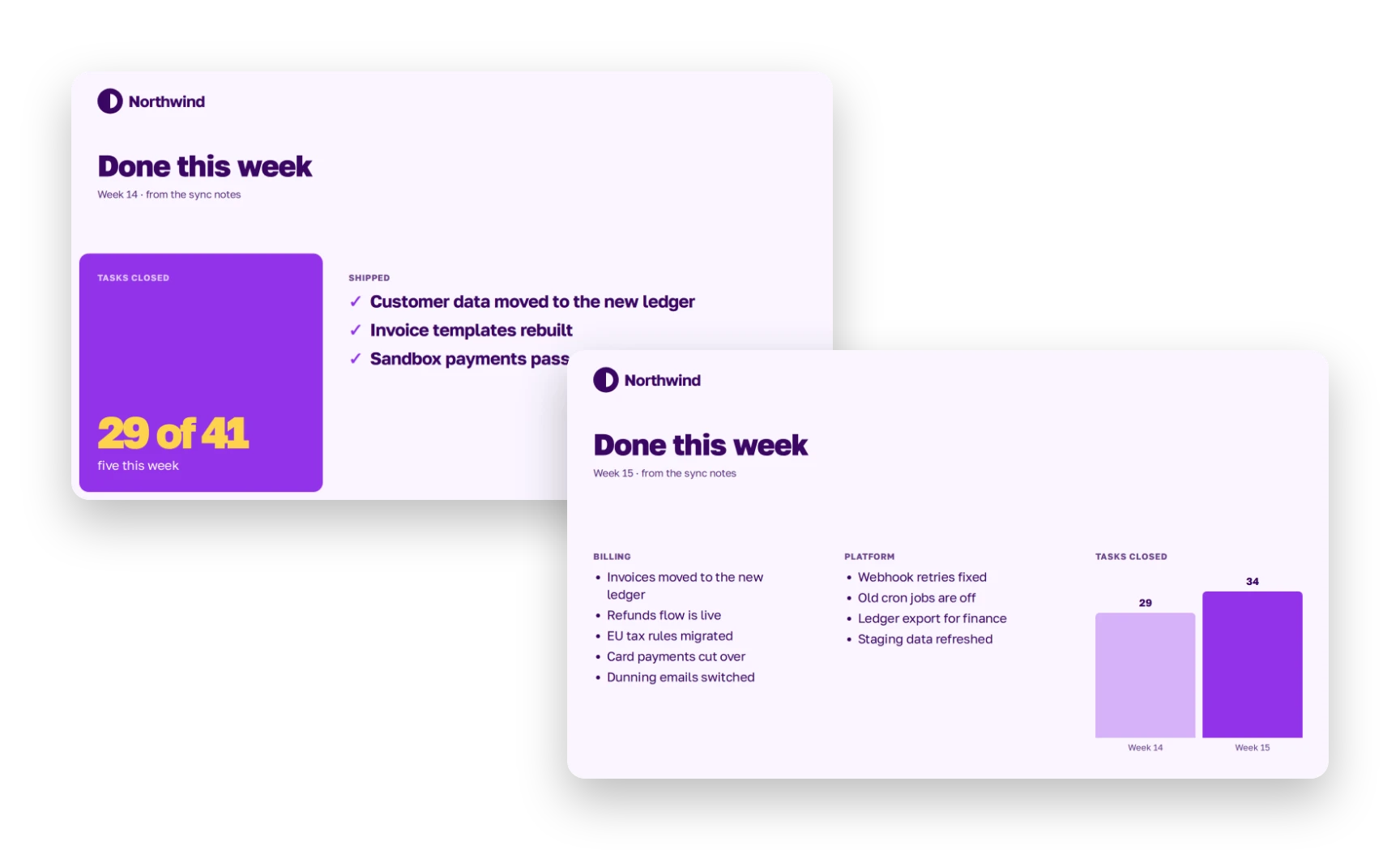
Two “Done this week” slides. Week 14 has three points and one large number. Week 15 has nine points in two columns and a chart. Both are in the same style

Numbers

The numbers on your slides come from your spreadsheet and notes.

Plainline checks them against the source and flags mismatches. You see them before the meeting, not during it.
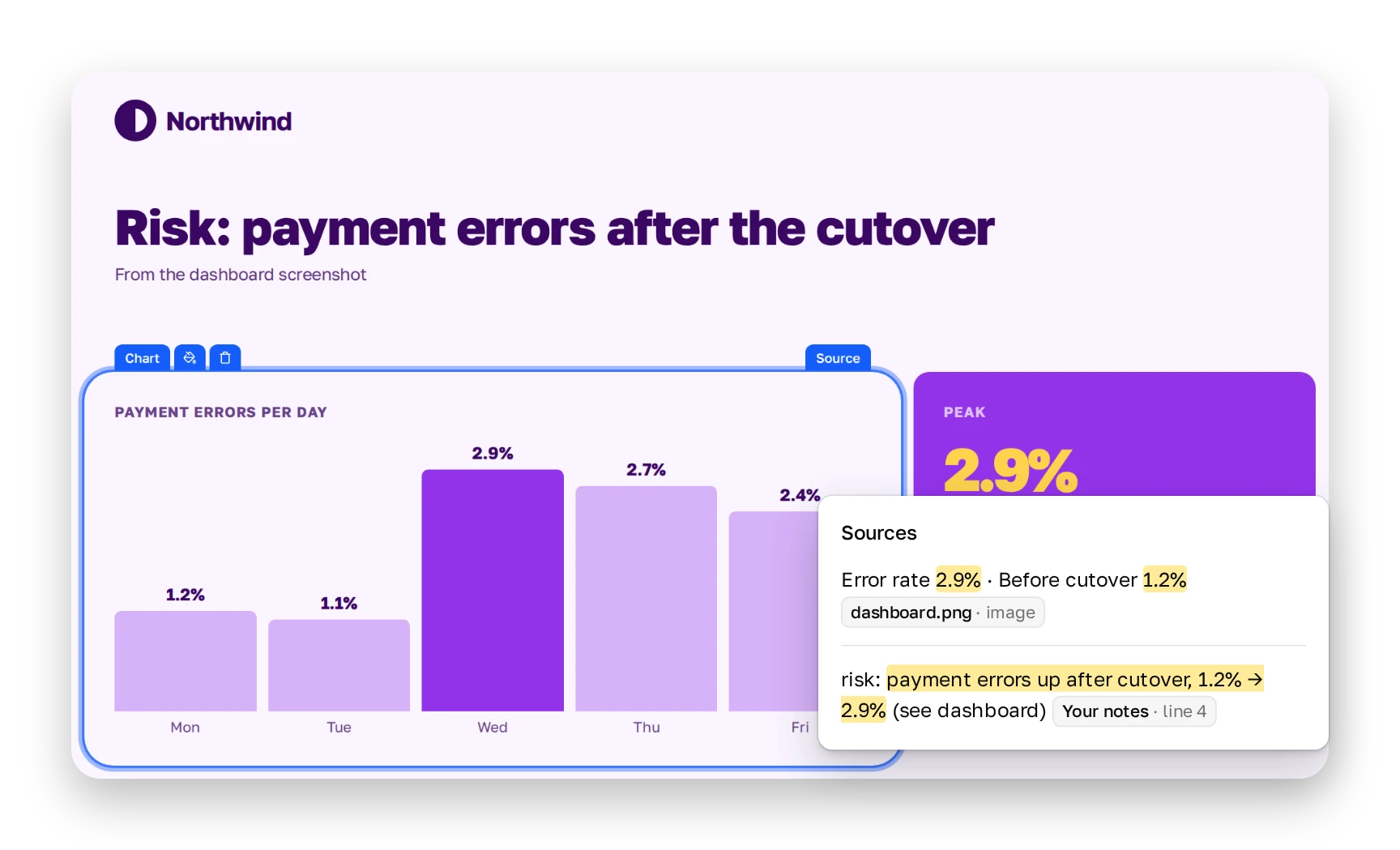
The slide with the payment errors chart selected and the Sources popover open: the figures from the dashboard screenshot and the line from the notes behind the chart

Team style

Whoever builds the update this week, it looks like your team’s deck.

You set colors, fonts and logo once.
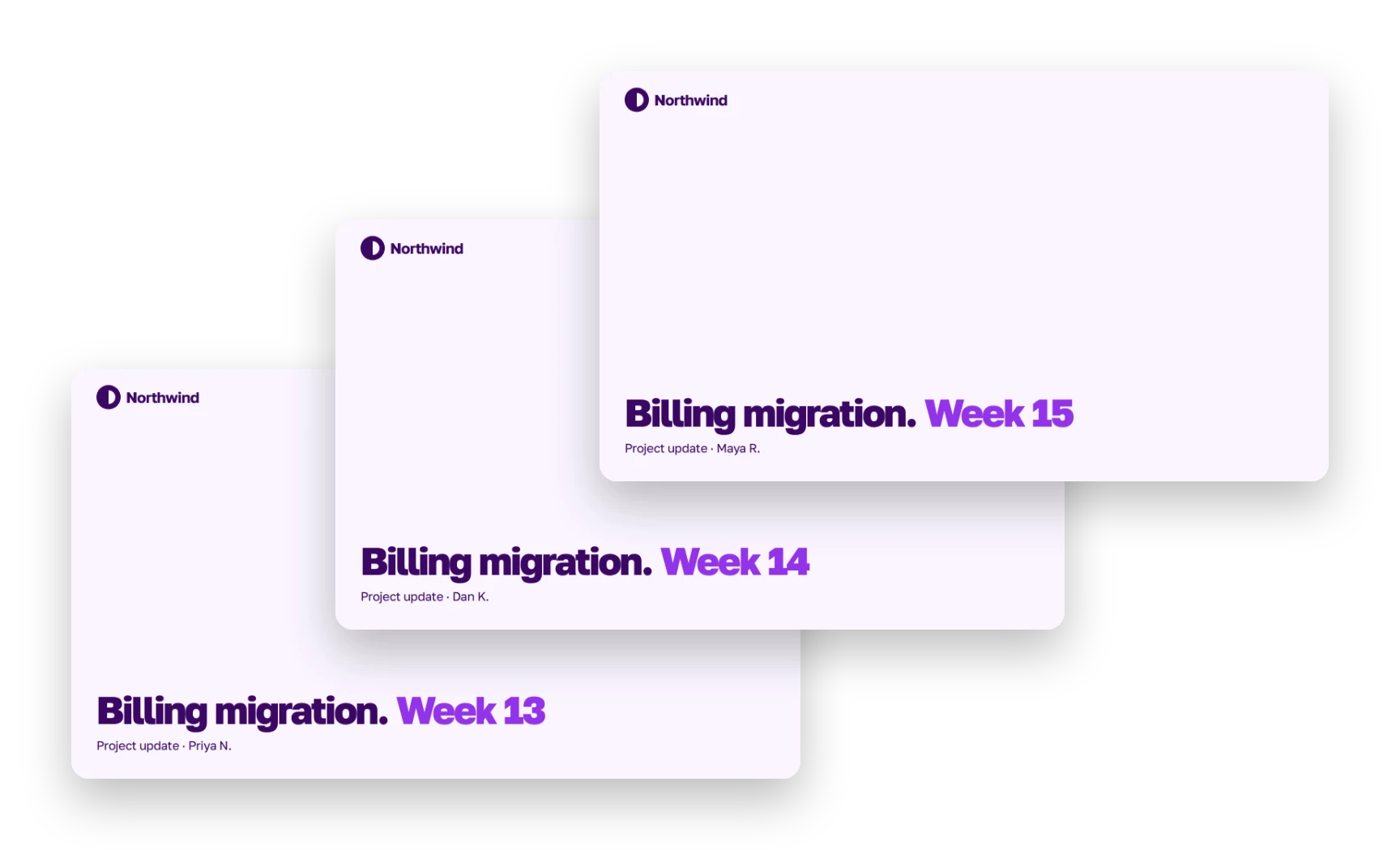
Three update covers for weeks 13, 14 and 15 with different authors and the same logo, colors and fonts

Example

A project update for week 15. Built from one note, a task spreadsheet, and one screenshot.

Which updates

Weekly or once a sprint, the job is one: turn your notes and files into slides.

Weekly team update

Plainline turns your sync notes into slides for the team.

Stakeholder update

Your lead or your client isn’t in the project every day. Choose the audience, and Plainline leads with results.

Sprint review

Bring the list of closed tasks and a tracker export. You get the sprint deck.

All-hands

Add updates from several teams and get one deck for the whole company.

Skip the deck

A three-line update for your own team? Post it in chat. A deck is worth it when the update has numbers or goes to people outside the team.
Time

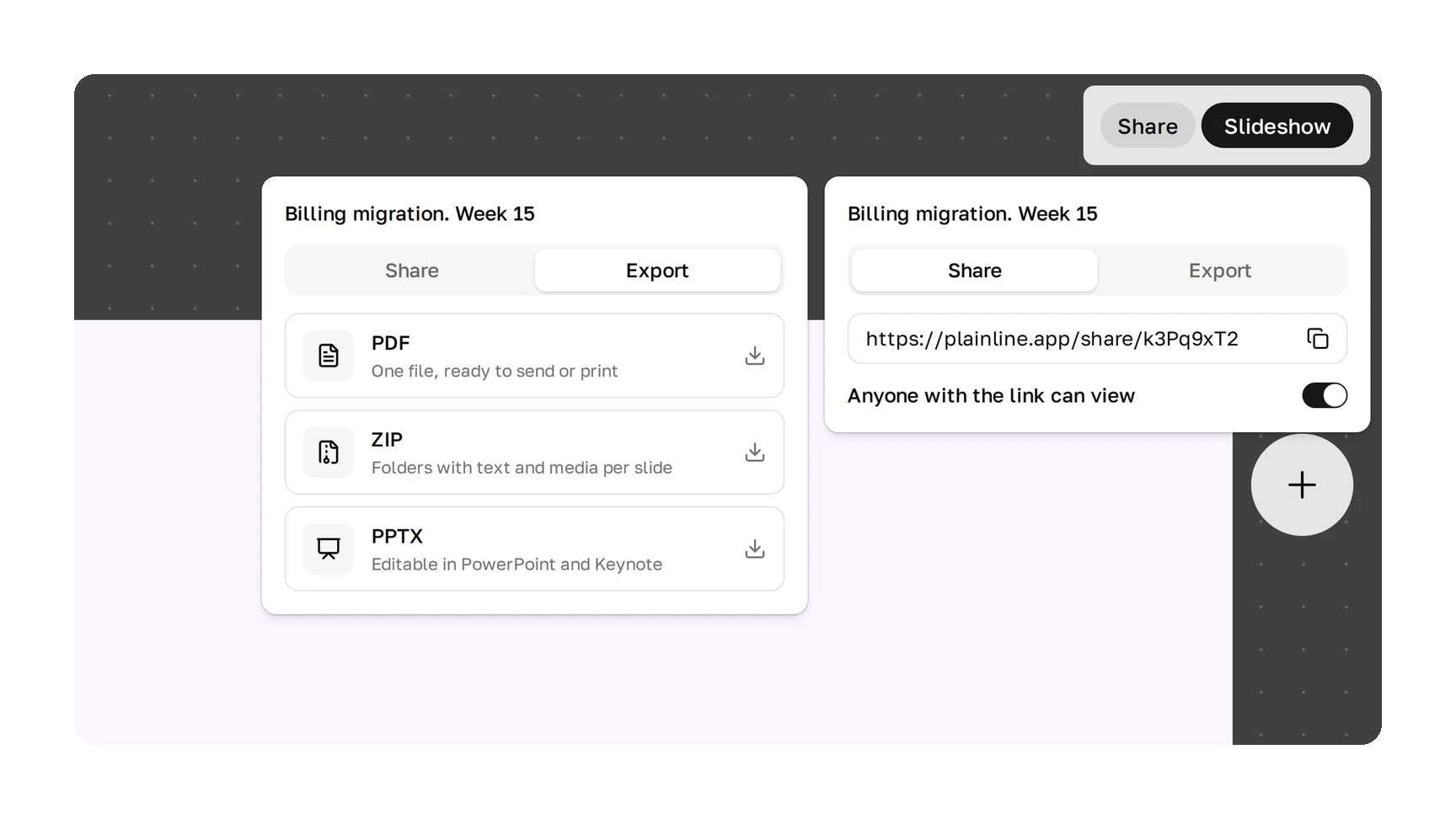
You’ve already written the status. The slides take minutes: add your material, look through the deck, send a link or a PowerPoint file.

The Plainline editor with the Share window open in two states: a view link with the switch “Anyone with the link can view”, and export to PDF, ZIP and PPTX

FAQ

How do I make a project status update presentation?

Add your notes and files for the week, answer a couple of questions, and get a deck you can edit.

Which files can I add?

Text, PDF, Word, PowerPoint, Excel, CSV, and images.

Does Plainline connect to Jira, Linear or Notion?

Not yet. Export a spreadsheet or copy the text and add them yourself.

Will it make a chart from my spreadsheet?

Yes. You can adjust the chart and its data in the editor.

Can it change my numbers?

It’s built not to. Plainline checks numbers against your material and flags anything that doesn’t match.

Will the deck be the same every week?

The style will be. The slides depend on what you bring that week.

Does it work for a sprint review or an all-hands presentation?

Yes. Add the sprint material, or the teams’ updates, together.

Can I download it as PowerPoint?

Yes. There’s also PDF and a view link that needs no login.

Guides

All articles

Hi, there

Join the waitlist

    By continuing, I agree to the privacy policy.