




The best text-to-presentation AI tools for keeping your message intact are the ones that let you choose a mode that preserves your exact wording — Gamma’s Preserve setting is the clearest example — rather than tools that generate from a topic or summarize your text into an outline by default. The only reliable way to know which is which is to run one paragraph of your own text through each tool and compare the result to the source, line by line.
A text-to-presentation AI tool takes written text — a document, notes, or a pasted paragraph — and turns it into slides, choosing a layout and, in most cases, rewording the content along the way. Vendor comparisons usually stop at a feature table: does it support PowerPoint export, does it have templates, does it integrate with Google Slides. None of that tells you whether your exact number, your hedge, your quote, and your exception survive the step between paragraph and slide, or get smoothed into a version that no longer matches what you wrote. Two tools can both claim "AI-generated slides from text" while one keeps your wording untouched and the other quietly rewrites it into a more generic register — the difference shows up only in what happens to the qualifier next to the headline claim, not in the headline itself.
The one-paragraph test
Take one paragraph that carries four things: an exact number, a hedge or qualifier, a direct quote, and an exception to the main claim. A generic summary drops these first, because none of them is the headline.
Support wait times fell from an average of 14 minutes to 9 minutes after the
new triage rule shipped in July, provisional pending a full August close-out.
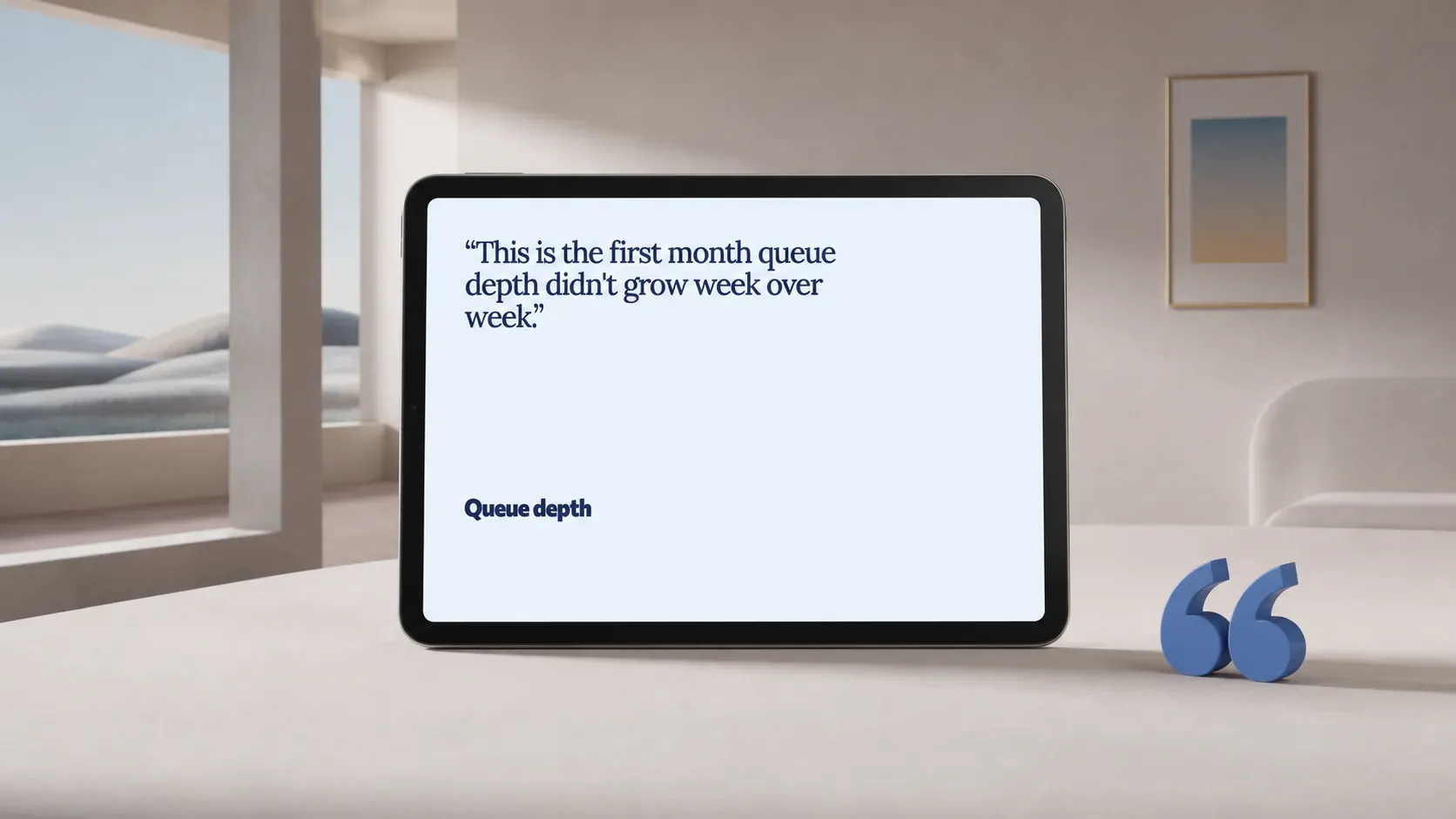
The engineering lead noted, "this is the first month queue depth didn't grow
week over week." Two of the four regions still saw wait times increase, so
the improvement is not yet uniform across the team.
Four things are worth tracking through generation: the 14-to-9-minute change, the word "provisional," the engineering lead's exact quote, and the two-region exception. A tool that turns this into a slide reading "Support times improved in July" kept the headline and dropped everything that qualifies it.

What each tool's own documentation says happens to this paragraph
Gamma lets you paste text and choose among three text modes before generation: Preserve, which "retain[s] the exact text in inputText, sometimes structuring it where it makes sense to do so, e.g., adding headings to sections"; Generate, which rewrites and expands brief input; and Condense, which summarizes long input to a target length. Preserve is the only one of the three built to carry the quote, the hedge, and the exception through unchanged — and it's a setting you have to pick, not the default outcome of pasting text in.
Beautiful.ai doesn't rewrite imported text automatically. Its AI rewriting only runs when you select a text box and ask it to rework the copy, and the result comes back as suggestions you either apply, keep your original text over, or regenerate. Nothing overwrites your wording without a click, so the paragraph above survives by default. The one real risk is procedural: forgetting which box you asked the AI to touch.
Canva's Magic Design for presentations starts from a topic or a prompt, not from a document you paste in. You describe what the presentation is about, Canva generates a themed deck from its template library, and you apply the layout you like. None of the four details in the paragraph transfers through that step, because the step never sees the paragraph. Getting your own wording in is a separate, manual pass — retyping or pasting into text boxes afterward.
SlidesAI caps input at 1,000 characters per presentation on its free plan, scaling to 6,000 on Pro and 12,000 on Premium. The test paragraph above, at roughly 430 characters, clears even the free tier with room to spare, so length isn't the obstacle here. The obstacle is the step every plan shares: SlidesAI turns your input into a slide-by-slide outline you review, edit, or regenerate before final slides are built. An outline is a compression by design, and the two-region exception — the detail that complicates the headline rather than supporting it — is exactly what a compression step cuts first.
Plus AI's Remix feature reformats an existing slide's layout — into columns, a timeline, a comparison — in one click. Separately, pasting in a block of raw text can be turned into an organized slide. No character limit is published for either path. Whether the quote and the exception survive depends on which step touches them: reformatting an already-built slide's layout leaves the wording alone, but the first pass — turning raw paragraph text into slide copy — is where a paraphrase can enter.
Plainline's generation step works from a different unit than a topic or a full-document rewrite: every slide in the content plan carries a sourceText field defined as the exact supporting fragment from the input. Applied to the paragraph above, the quote becomes a quote card holding the engineering lead's words verbatim, the two-region exception becomes the body of an evidence card, and the 14-to-9-minute change becomes a metric card, each one traced back to the exact fragment it was built from rather than folded into a paraphrase of the whole paragraph.
Scorecard: what survives, and what decides it
| Tool | Quote kept verbatim | Hedge kept | Exception kept | What decides it |
|---|---|---|---|---|
| Gamma | Yes, if you choose Preserve | Yes, if you choose Preserve | Yes, if you choose Preserve | The text mode you pick at paste |
| Beautiful.ai | Yes, by default | Yes, by default | Yes, by default | Only changes if you invoke AI rewrite on that box |
| Canva Magic Design | No — generation doesn't start from your text | No | No | Generation starts from a prompt, not your paragraph |
| SlidesAI | At risk | At risk | At risk, most likely dropped | The outline-first summarization step every plan shares |
| Plus AI | Depends on the step | Depends on the step | Depends on the step | Remix reformats layout; the initial text-to-slide pass is where wording can shift |
| Plainline | Yes | Yes | Yes | Each slide is anchored to an exact source fragment by design |
Run the test on your own text
- Pick one paragraph from something you've already written that carries a number, a hedge, a quote, and an exception to its main claim.
- Paste it into each tool on your shortlist, choosing the text-preserving path where one exists — Gamma's Preserve mode, or simply not invoking Beautiful.ai's rewrite feature.
- Read the generated slide against the source paragraph before touching layout, font, or color.
- Mark exactly what changed: a softened hedge, a dropped exception, an unattributed quote.
- Judge the tool by what it left out of that comparison, not by how finished the slide looks.
If your source is a full document rather than one paragraph, turning a document into editable slides covers mapping claims and evidence before you generate anything; if it's a set of scattered notes, turning rough notes into an editable presentation covers building the map first. For the deeper comparison of editing, export, and pricing behavior across these same tools, see the full AI slide generator comparison; the claim-and-evidence workflow covers turning a mapped paragraph into a finished draft slide by slide. For where this fidelity check fits into the larger process, see how to create a presentation with AI.
To see how your own paragraph holds up, use your own text in Plainline — generation ties each slide back to an exact fragment of what you pasted in, so the quote, the hedge, and the exception stay attached to the fragment they came from.
Frequently asked questions
What is a text-to-presentation AI tool?
It takes written text — a document, notes, or a pasted paragraph — and turns it into slides automatically, choosing a layout and, in most cases, rewording the content along the way. These tools differ less in slide design than in whether your exact wording, numbers, and caveats survive that step or get paraphrased away.
Which AI tool keeps my exact wording when generating slides from text?
Gamma's Preserve mode is the most explicit control for this — you select it before generation. Beautiful.ai doesn't rewrite text unless you invoke its rewrite feature on a specific box. Plainline anchors every slide to an exact fragment of your input by design. Tools that generate from a topic instead of your text, like Canva's Magic Design, don't carry your wording through generation at all.
How do I test whether an AI presentation maker preserves my message?
Pick one paragraph containing a number, a hedge, a quote, and an exception to its main claim. Paste it into each tool you're considering and compare the resulting slide to the source line by line, before adjusting design. The hedge and the exception usually vanish first, since both read as less important than the headline claim.
Does a shorter input text avoid these fidelity problems?
Length affects whether a tool accepts your text at all — SlidesAI caps free-plan input at 1,000 characters, for example — but it doesn't fix wording fidelity on its own. A short paragraph can still lose its hedge or its quote if the tool's default path summarizes or rewrites rather than preserves.
Can I still edit the wording after the slides are generated?
Yes, in every tool covered here, but the editing model differs: Beautiful.ai and Gamma keep you inside a template-driven editor, Canva, SlidesAI, and Plus AI hand you standard slide objects, and Plainline keeps content in structured cards. For the full comparison of editing and export behavior beyond wording fidelity, see the AI slide generator comparison linked above.
Sources
- Understand how the Generate API parameters work — Gamma
- Rewriting text with AI — Beautiful.ai Support
- Reformat slides with Remix — Plus AI
- Create a presentation with Canva AI — Canva Help Center
- Pricing — SlidesAI
- Generate your first presentation — SlidesAI Help Center