



If you already wrote the document, Gamma’s Preserve mode keeps your wording intact, Plus AI and SlidesAI hand back native PowerPoint or Google Slides files you edit in place, Beautiful.ai and Canva paywall editable PPTX export, and Canva’s Magic Design starts from a topic rather than from your text.
An AI slide generator is a tool that takes text — a prompt, a pasted document, or an uploaded file — and returns a structured deck with slide titles, body content, and layouts chosen for you. The tools differ far less in how the slides look than in how much of your original text and editing control survives that generation step.
This comparison covers five widely used AI slide tools — Gamma, Beautiful.ai, Canva's Magic Design for presentations, SlidesAI, and Plus AI — on four criteria that matter for a source-heavy deck: whether your original text survives generation, how much you can edit afterward, how much friction sits between paste and a usable file, and what you actually keep on export. Design polish isn't one of them; all five produce visually competent slides, and that's not where they differ.
The comparison draws on each vendor's own documentation and help center, not a timed trial across every paid tier. Pricing, limits, and features on these pages can change; treat the specifics below as current as of the cited sources, not permanent.
The five tools at a glance
| Tool | Source text fidelity | Editing after generation | Editable export | Fits when you start from |
|---|---|---|---|---|
| Gamma | Preserve mode keeps your wording; Generate and Condense rewrite it | Card-based editor; cards edit in place but do not map one-to-one onto 16:9 slides | PPTX, PDF, PNG on all plans; watermark on free | A document you want to keep verbatim |
| Beautiful.ai | DesignerBot suggests rewrites you accept or reject | Smart templates re-adjust automatically as content changes | Editable PPTX on Pro, Team, Enterprise only | A brand-consistent template library |
| Canva Magic Design | Generates from a topic or prompt; your own text goes in manually | Standard slide objects on an open canvas | PPTX, PDF, MP4; PPTX is Pro-only | A topic rather than a document |
| SlidesAI | Summarizes input into an outline you review; 2,500-character cap on free | Native Google Slides or PowerPoint editing via add-on | Google Slides, PPTX, PDF | Short source text, inside Slides |
| Plus AI | Remix restructures layout without necessarily rewriting copy; 100k+ characters | Native Google Slides or PowerPoint editing via add-on | Native PPTX or Google Slides file | A long document, inside Slides or PowerPoint |
| Plainline | Every slide ties back to an exact fragment of the input text | Structured cards — text, bullets, metric, quote, comparison, evidence | PPTX and PNG/ZIP; no PDF or Google Slides export today | A written document you keep editing |
Each column is unpacked below.
Fidelity to source: does your wording survive generation?
Most comparisons skip this, and it matters most if you're not writing from scratch.
Gamma is the most explicit about it: paste text in, and you choose Preserve (keeps your wording intact), Generate (rewrites and expands it), or Condense (summarizes to a target length).
Canva's Magic Design works differently — it generates a themed deck from a topic or prompt using Canva's template library. Getting your own text in is a separate, manual step: you paste it in or use Magic Write to edit existing copy. It's not built to ingest a long document and structure it automatically.
Beautiful.ai offers AI rewriting through DesignerBot, which suggests alternative phrasing for tone, length, or clarity — you accept a suggestion or regenerate it, so nothing overwrites your text without a click. That makes the base import step, not DesignerBot, the real determinant of what survives.
SlidesAI requires at least 350 characters of input and turns it into an editable outline you review — and can regenerate — before slides are built, so your text passes through a summarization stage first. On the free plan, that stage also has to fit your content into a 2,500-character cap per presentation, forcing real compression if your source document runs longer.
Plus AI accepts PDFs, Word docs, PowerPoint files, or pasted text up to 100k+ characters. Its Remix feature restructures existing content — bullet lists into columns, chronologies into timelines — without necessarily changing the wording, since it's reformatting layout rather than rewriting copy.
Editability after generation: structured blocks or open canvas
Beautiful.ai and Gamma both keep you inside a template-driven editor: Beautiful.ai's "smart" templates re-adjust automatically as you edit content, and Gamma's cards can be edited in place, though its scrollable card layout doesn't map one-to-one onto traditional 16:9 slides. Canva, SlidesAI, and Plus AI hand you a deck built from standard slide objects — SlidesAI and Plus AI in particular run as add-ons inside Google Slides or PowerPoint, so once the deck is generated, editing is full native Slides or PowerPoint editing with no residual structure to preserve or break. How to turn a document into editable slides covers what a structured editing model needs to preserve when the source is a document rather than a topic.
Time to a usable deck
None of these tools publish a stopwatch benchmark, so this is about documented friction points, not measured minutes.
Character limits are the most concrete one: SlidesAI's free tier caps input at 2,500 characters, scaling to 6,000 on the $10/month Pro plan and 12,000 on Premium. A genuinely long source document has to be trimmed or split before it fits — an extra editing pass before generation even starts.
Export paywalls are the second: Beautiful.ai's editable PowerPoint export is restricted to Pro, Team, and Enterprise, so a free-tier user exporting to PPTX gets a file made of static images instead. Canva's PPTX export is Pro-only too.
Installation is the third: Plus AI and SlidesAI install into an existing Google Slides or PowerPoint account — faster if you already live there, slower if you don't. Gamma, Beautiful.ai, and Canva are standalone web apps that need no installation elsewhere.
Export: what you actually keep
| Tool | Native editable export | Notes |
|---|---|---|
| Gamma | PDF, PNG, PowerPoint (PPTX) — all plans | Free-tier exports carry a watermark; PPTX can lose gradients, frosted backgrounds, and custom fonts since Gamma's card layout doesn't map directly to native PowerPoint objects |
| Beautiful.ai | Editable PowerPoint — Pro, Team, Enterprise only | Lower tiers and other export types produce a static, image-based PPT or PDF; transitions and animations are lost on any export |
| Canva | PPTX, PDF, MP4 | PPTX export is Pro-only; layouts can shift and fonts may need reinstalling when opened in PowerPoint; animations and embedded video aren't supported in the PPTX file |
| SlidesAI | Google Slides, PowerPoint (PPTX), PDF | All paid plans include document upload; vendor describes the PPTX output as a real, working file rather than a flattened image |
| Plus AI | Native PPTX / Google Slides | Built as an add-on, so the "export" is really the file you were already editing in Google Slides or PowerPoint |
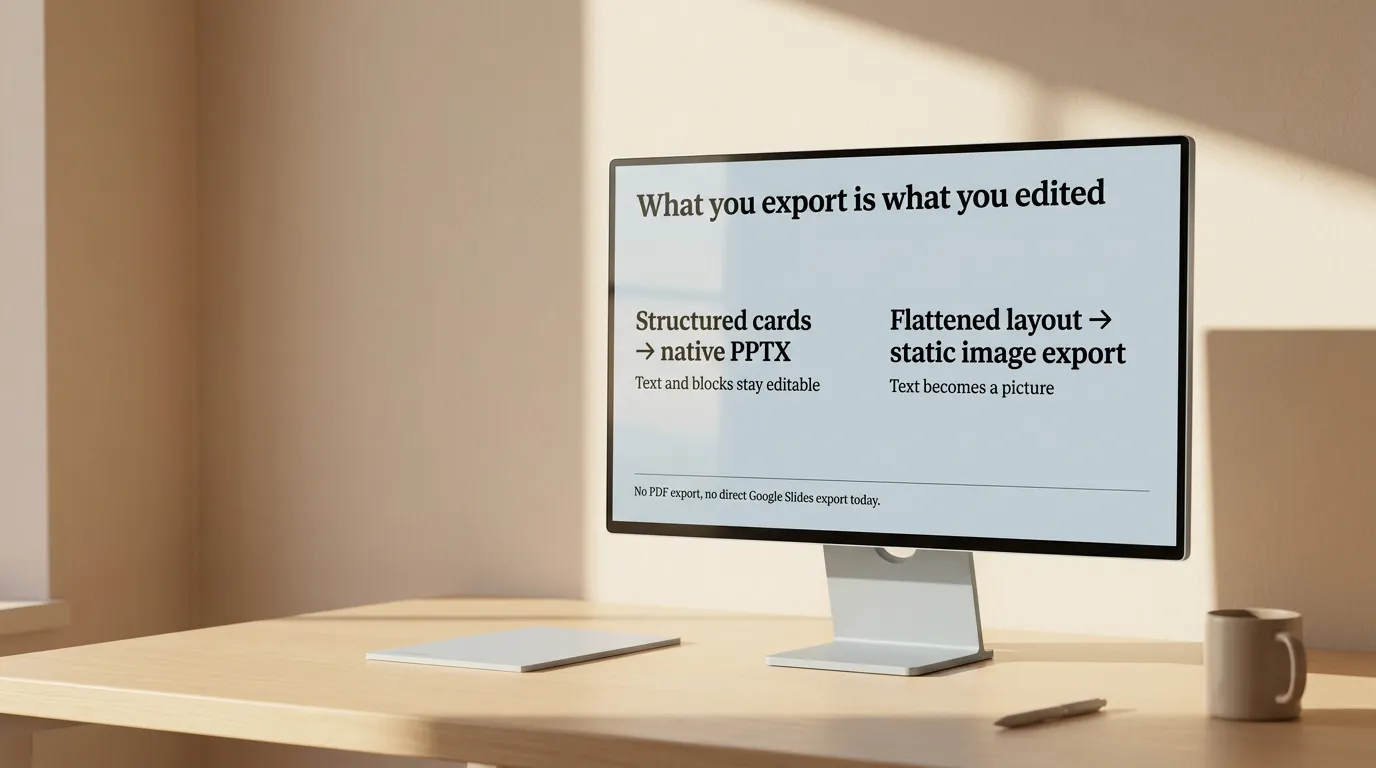
| Plainline | PNG/ZIP, PowerPoint (PPTX) | No PDF export and no direct Google Slides export today; PPTX comes from the same structured card model you edited, not a flattened image |
Run the same test on your own document
Vendor documentation settles what a tool claims; one document settles what it does. Take a memo you already own, put it through every tool on the shortlist, and answer four questions in the same order each time:
- Structure fidelity. Does the deck follow the argument in the source, or does it impose a generic title-agenda-bullets-thanks template?
- Post-generation edit range. Can you rewrite a slide, change its layout, and reorder slides without regenerating the deck?
- Export fidelity. After downloading the PowerPoint or PDF file, is the text still editable, or has it flattened into images?
- Where the deck lives. Is the result a hosted link, a native Slides or PowerPoint file, or an in-app project you export on demand?
A short memo is enough to separate the tools:
Subject: Q3 onboarding pricing test — recap for leadership

We ran a two-tier pricing test on new-team onboarding from May through July.
Tier A (flat fee) converted at 18%. Tier B (usage-based) converted at 11%,
but average revenue per account was 22% higher after 60 days.

Support tickets during onboarding were flat across both tiers, so the
usage-based model did not create extra support load.

Open question: whether usage-based pricing holds up past 60 days is not
yet known — we only have two months of data.

Recommendation: move new self-serve teams to usage-based pricing for Q4,
keep the flat-fee option for teams that opt in during sales calls, and
revisit with 90-day data before Q1 planning.
A useful result leads with the recommendation and the two conversion numbers, keeps the caveat about the 60-day window visible, and invents no "market context" or "next steps" slide the memo never mentioned. Anything that fails those three checks on a memo this short will fail harder on a report.
Which tool fits which starting point
Canva's Magic Design fits starting from a topic rather than a document, when template variety matters more than ingesting existing text. Gamma's Preserve mode is the fastest route to a shareable card deck that keeps your exact wording. Teams already living inside Google Slides or PowerPoint, mainly reformatting long documents without leaving that app, are better served by Plus AI or SlidesAI — though SlidesAI's character caps are worth checking against document length first. Beautiful.ai fits when brand-consistent templates matter more than ingesting long source documents.
If you're starting from a document that's already written — a report, a roadmap, rough notes — and want to keep its structure and wording intact through editing rather than regenerate them, that's the case a source-anchored, block-based editor is built for. Plainline's generation step ties every slide back to an exact fragment of your input text, and editing afterward stays inside the same structured cards — text, bullets, metric, quote, comparison, evidence — rather than opening onto a free canvas.
Compare the same source text in Plainline to see how your document holds up.
Frequently asked questions
Which AI slide generator keeps my original wording?
Gamma is the most explicit about it: pasting text in lets you pick Preserve, which keeps your wording instead of rewriting it. Plus AI reformats existing content without necessarily rewriting the copy. SlidesAI passes your text through a summarization stage first, so wording changes by design.
Can I edit the slides after an AI has generated them?
Always, but not in the same way. Gamma and Beautiful.ai keep you inside a template-driven editor whose layouts re-adjust as you type. Canva, SlidesAI, and Plus AI hand you standard slide objects, and the last two run as add-ons inside Google Slides or PowerPoint, so editing is native.
Which AI slide generators paywall PowerPoint export?
Beautiful.ai restricts editable PowerPoint export to Pro, Team, and Enterprise; lower tiers get a static, image-based file. Canva gates PPTX export behind Pro. Gamma exports PPTX on all plans, with a watermark on the free tier. SlidesAI and Plus AI produce native files you already own.
How much text can I paste into an AI slide generator?
It varies by an order of magnitude. SlidesAI needs at least 350 characters and caps free-plan input at 2,500 characters, 6,000 on Pro, and 12,000 on Premium. Plus AI accepts documents and pasted text well past 100,000 characters. Check the cap against your source before choosing.
Sources
- Gamma — Gamma
- Beautiful.ai — Beautiful.ai
- Canva — Canva
- SlidesAI — SlidesAI
- Plus AI — Plus