




Google “project status update presentation” and the first page is almost entirely template galleries: traffic lights, Gantt charts, circular progress bars. It all looks neat. But the real problem with a status meeting is that ten minutes in, nobody can say what changed or what is being asked of them.
My name is Nick. I've been a product designer for 15 years, and now I'm building Plainline, a service that turns text into presentations. I've seen a lot of status presentations, and the good ones are almost always built the same simple way. Below is what I'd recommend preparing for a status meeting: a text template you can fill in, plus a worked example of how it turns into slides.
In short: what goes into a status presentation
Five things:
- Where the project is now.
- What changed since the last update.
- What will be done before the next check-in.
- Risks and blockers.
- What decision or help you need from the audience.
That's why four to eight slides are usually enough for a recurring meeting.
Tip 1. The first slide is the news, not the topic
Compare two titles:
- "Onboarding refresh: August update"
- "SSO access delays the pilot by a week; the September 2 release stays on track"
The first one just names the topic. The second one delivers the news, and someone who joins the call two minutes late already knows the main thing.
Bad news goes on the first slide too. Of course it's tempting to hide a schedule slip on slide five, after "progress". Don't. The audience will get there anyway, just with the feeling that they were being led up to it.
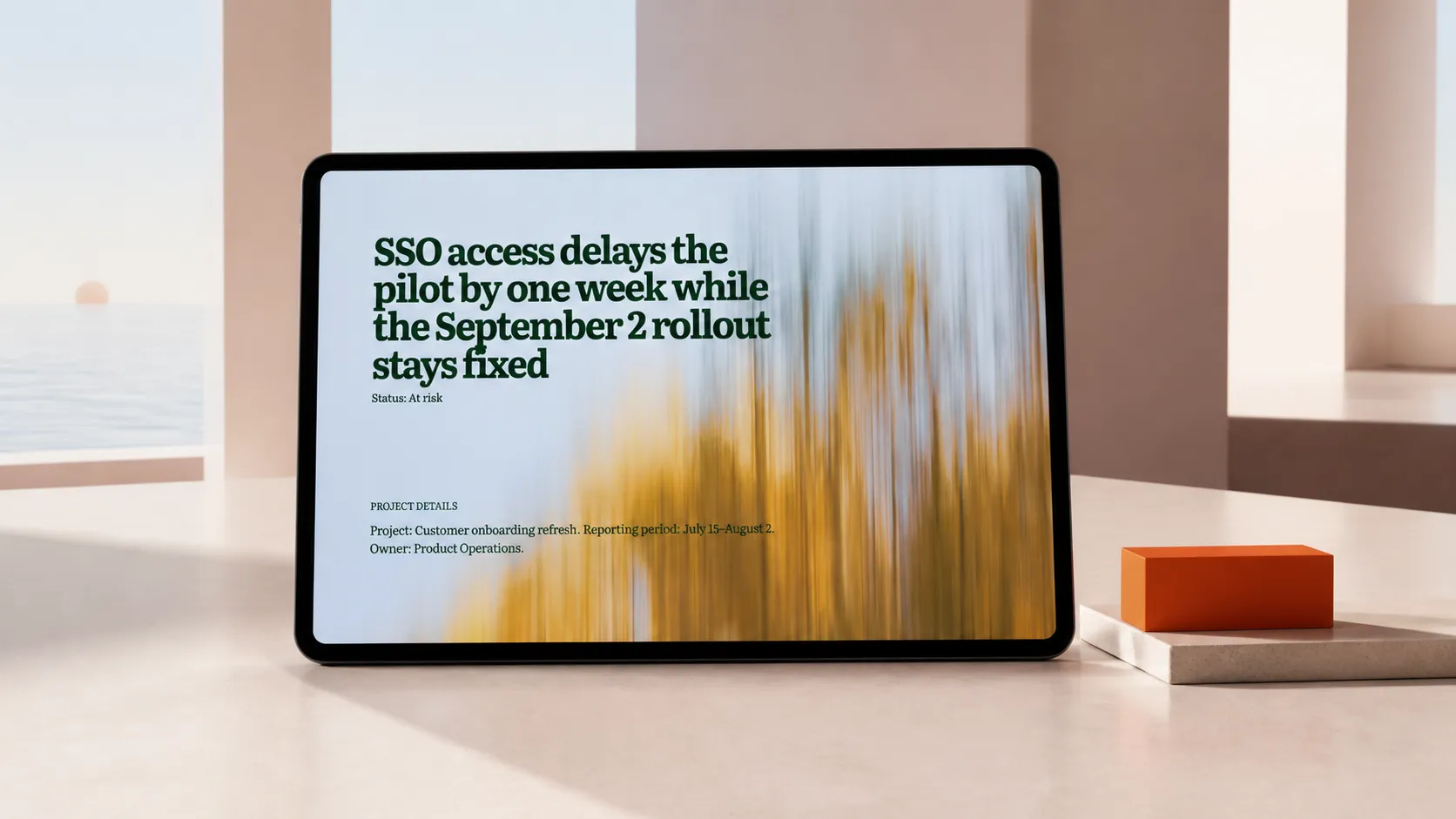
Try this: read only your slide titles out loud, one after another. If they add up to a coherent story, the presentation is ready. If you get "Status", "Progress", "Risks", "Next steps", that's a table of contents, not a story.
Tip 2. Write a memo first, then open the slide editor
This is the most useful thing I can recommend. Twenty minutes in a plain text file saves an hour in PowerPoint.
When you start straight with slides, your head is busy with "where does this image go" and "will the text fit". A memo makes you decide first what you want to say and what backs it up. Building the slides comes later.
Here's a rough template. Replace the fields in square brackets and delete any empty sections.
Project: [name]
Reporting period: [start date – end date]
Owner: [name or role]
Audience: [who the update is for]

Overall status: [On track / At risk / Off track] — [reason in one sentence]

Summary
[Two or three sentences: what changed, why it matters, and whether the main goal moved.]

Progress against plan
- [Deliverable or milestone]: [actual] vs plan [plan]
- [Deliverable or milestone]: [actual] vs plan [plan]
- [Metric]: [current value] vs target [target or previous value]

Before the next update
- [Expected outcome] — [who] — [when]
- [Expected outcome] — [who] — [when]

Risks and blockers
- [Risk or blocker]
  Impact: [on scope, schedule, budget, or quality]
  Response: [action, owner, review date]

Decision or help needed
- By [date], [decision-maker] chooses [specific option].
  If the decision is delayed: [consequence].

Sources
- [Link to the plan, dashboard, risk log, or document]
Three checks before you move on:
- every result has a plan or target to compare it with;
- every risk has an impact and a response;
- every request has a specific person and a deadline.
If even one is missing, the presentation turns into a list of what the team has been busy with. And that's not what people in the meeting need.
If you run a weekly cycle, there's a shorter weekly update format: six slides in the same order every week.
Example: a memo for the "Onboarding refresh" project
The example is made up. The dates and numbers show the format, not a real project.
Project: Customer onboarding refresh
Reporting period: July 15 – August 2
Owner: Product Operations
Audience: Launch steering group

Overall status: At risk — the pilot moves from August 12 to August 19 because the team still has no access to the SSO test environment. The September 2 release date does not change.

Summary
8 of 10 critical onboarding journeys have passed QA. The SSO and password-reset journeys are blocked because there is no access to the test environment. Content, analytics, and the support handoff are ready for the pilot. The group needs to choose: wait for full SSO coverage or run a reduced pilot on August 12.

Progress against plan
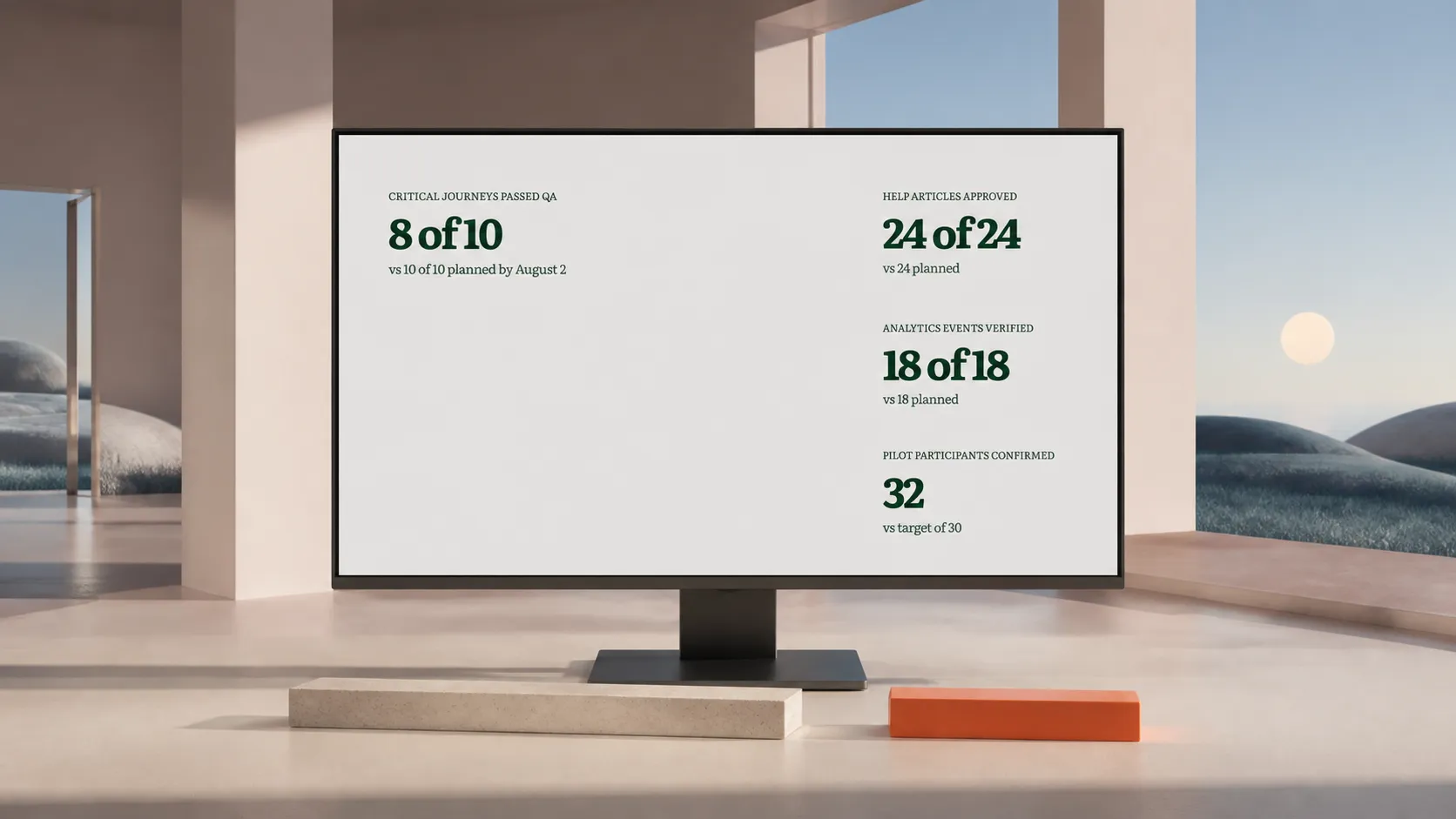
- Critical journeys passed QA: 8 of 10 by August 2
- Help articles approved: 24 of 24
- Analytics events verified: 18 of 18
- Pilot participants confirmed: 32 vs a target of 30

Before the next update
- Finish QA for SSO and password reset — Engineering and QA — August 9
- Rehearse the support escalation path — Support Operations — August 13
- Confirm the pilot group and send instructions — Product Operations — August 14

Risks and blockers
- SSO test-environment access
  Impact: the full pilot starts a week late.
  Response: the infrastructure owner checks access daily; escalation on August 6.
- Compressed pilot window
  Impact: five fewer days for fixes before the release.
  Response: August 20–23 reserved for fixes; release date reviewed on August 23.

Decision needed
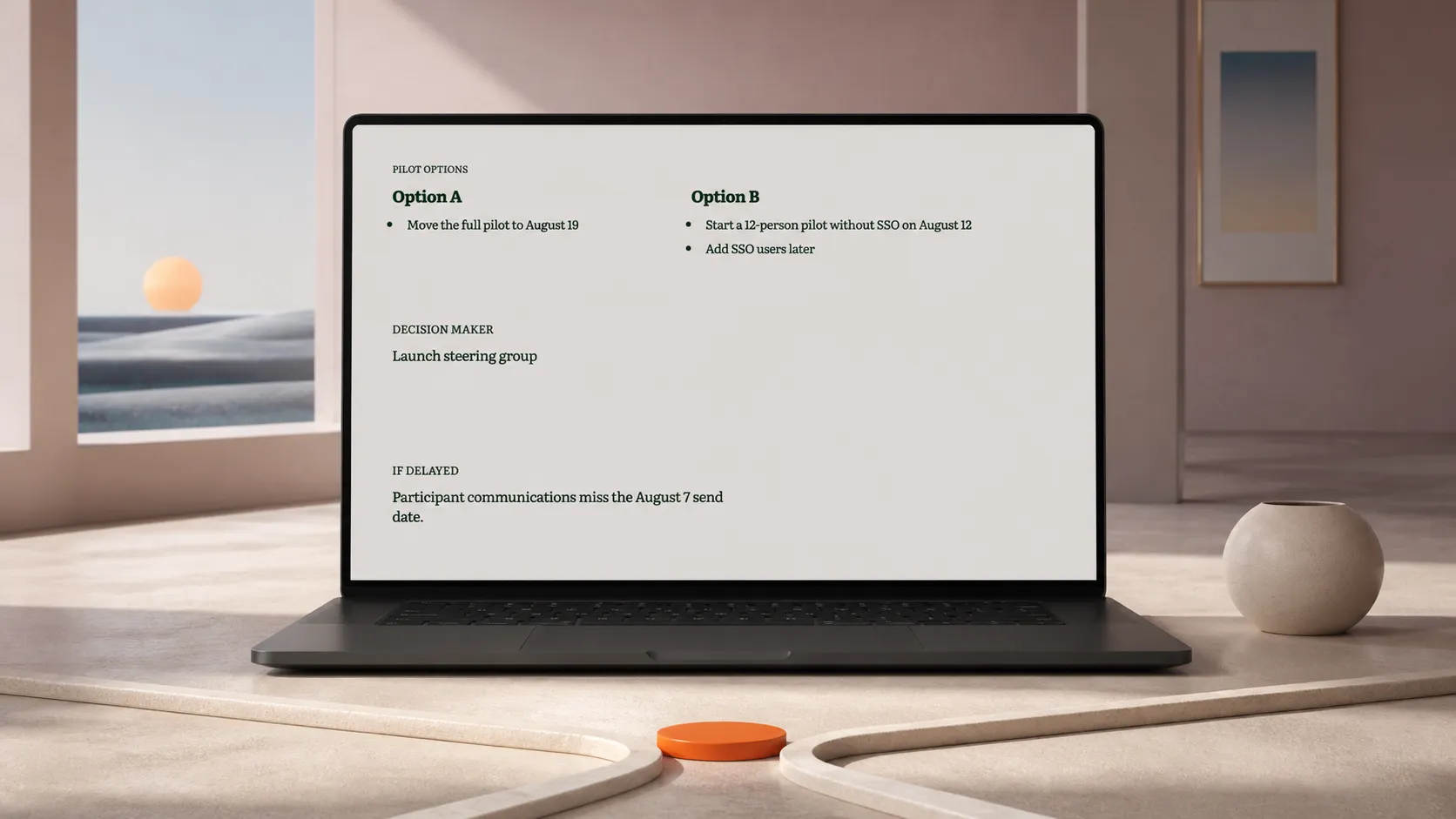
- By August 6, the launch steering group chooses one option:
  A. Move the full pilot to August 19.
  B. Start a 12-person pilot without SSO on August 12 and add SSO users later.
  If the decision is delayed: participant emails miss the August 7 send date.

Sources
- Delivery plan: [link]
- QA results: [link]
- Risk log: [link]
How the memo turns into seven slides
Each section of the memo becomes a slide. Look at the titles: you can read them in a row and the story makes sense without the rest.
| Slide | Title | What's on the slide | Why it's needed |
|---|---|---|---|
| 1 | SSO access delays the pilot by a week; the September 2 release stays on track | Project, period, owner, overall status | Says right away what changed and what it leads to |
| 2 | 8 of 10 critical journeys have passed QA | Four "actual vs plan" measures | Explains the "At risk" status without retelling the whole task tracker |
| 3 | SSO access blocks the last two journeys | Blocker, affected journeys, escalation date | Names the cause of the slip |
| 4 | Three outcomes get the pilot ready by August 14 | Upcoming outcomes with owners and dates | Pins down what gets done before the next meeting |
| 5 | A compressed pilot window leaves five fewer days for fixes | Two risks: impact, response, review date | Ties each risk to a consequence and an action |
| 6 | Choose the full or reduced pilot by August 6 | Options A and B, the cost of delay | Gives the group a clear, bounded decision |
| 7 | Definitions and source links | Plan, QA results, risk log, metric definitions | Keeps the details out of the main story |
You can adjust the structure. For a short internal call, merge slides 2 and 3 and skip the appendix. For a formal review, split progress into two slides: schedule and budget. The order stays the same either way.
This presentation is for a project that's already approved. If you're still going for approval, you need a project proposal presentation.
Tip 3. For every number, ask "compared with what?"
I'll spell this rule out on its own because it matters that much. Any number you want to show, put it next to a plan, a target, or a previous value. A number on its own tells the audience nothing.
"QA is almost done" makes the audience guess what "almost" means. "8 of 10 critical journeys passed; the plan was 10 by August 2" shows both the result and the gap.
If a metric has no target, compare it with the previous reporting period. If there's nothing to compare it with, it probably doesn't belong on a slide.
Same with the risk log: put the event, impact, response, and review date on the slide. Everything else goes into the appendix as a link.
Tip 4. Make the decision a question with options
The most common mistake on the last slide is "Questions?" or "We need leadership support". Nobody knows what to do with that, and the meeting ends with nothing.
Phrase the request so it can be answered in one word:
- who decides — the launch steering group;
- what to choose — option A or B;
- by when — by August 6;
- what happens if nobody decides — participant emails won't go out on time.
Many people skip the last point, and it's the strongest one: it explains why the decision has to be made now and not "let's discuss next week".
If the decision is important and the meeting is short, mention it on the first slide: "…and today we need to choose the pilot format". Then even if the progress discussion drags on, you'll get to the main thing (hopefully).
If there's nothing to decide, just put the date of the next check-in and the owner on the last slide.
Tip 5. One idea per slide, everything else in the appendix
Each slide should make one claim and back it up with text, a number, or a timeline. A unique title that describes the point helps both the live audience and whoever flips through the PDF later.
A simple filter for details: does this change how the audience sees progress, risks, or the decision? If not, it goes into the appendix or the speaker notes. Usually that includes:
- completed tasks that don't affect milestones;
- the full risk log, when only two risks need attention;
- dashboard screenshots with unreadable labels;
- meeting history and process narration;
- metrics without a target, a comparison, or a clear consequence.
More slides don't look more serious. They just hide the two main slides everyone came for.
Tip 6. Send the memo before the meeting
This one isn't about slides, but it works great. Send the memo text to participants a day before, or at least a couple of hours. Some people will read it in advance and come with an opinion on option A or B already formed. In the meeting itself, you spend the time on the decision, not on retelling.
That said, check that the slides carry enough context to be understood without the details you planned to explain out loud. A deck meant only to be presented and a deck meant to be read can be very different, and a wrong impression can hurt the meeting.
And keep the sections in the same order from update to update. After a couple of meetings people will know where to look and will start jumping straight to risks and the decision. That's a good sign.
How to turn the memo into slides in Plainline
Once the memo is ready, the presentation itself is almost mechanical. That's exactly the part I wanted to automate when I built Plainline.
You just paste the text, and Plainline splits it into slides and lays out the content on them, the same way as in the table above. A smart engine inside arranges the material on each slide by itself, so everything looks consistent and you don't have to do it all by hand.
If something doesn't look right, the presentation is easy to edit: change the text, move blocks, pick a different layout. Slides are made of large cells, which makes them really simple to work with. You can also add the tables and images you already have.
For a status update, there's one more nice thing: next time you just update the memo, and the slide structure stays the same.
Frequently asked questions
What goes into a project status update presentation?
The current position, what changed since the last update, the next work, the risks, and the decisions being requested. Four to eight slides cover most recurring reviews. Write a short memo first, then split it into slides, so the message is settled before you start choosing layouts.
How often should a project status update be presented?
As often as the meeting that acts on it takes place. That is usually weekly or biweekly for working reviews and monthly for steering groups. What matters more than frequency is that every update compares the current result with the plan, the target, or the previous value.
What should go next to a red, amber, or green status?
A reason, a consequence, and a reassessment date. A colour on its own records a mood. "At risk" with the reason for the slip, the effect on the date, and the day the team will re-check is something people can actually work with.
How much detail belongs in the main deck?
Only the detail that changes the view of progress, risk, or the decision. Everything else — full task lists, budget tables, test results — moves to an appendix people can open when they ask.